Print name tags and choose a label printer
Volunteers at the classroom door want a tag they can read at a glance, and parents want something in hand for pickup. Tags print from the check-in station itself, right after a family checks in. Here's how it works, and what you need before you buy or plug in a printer.
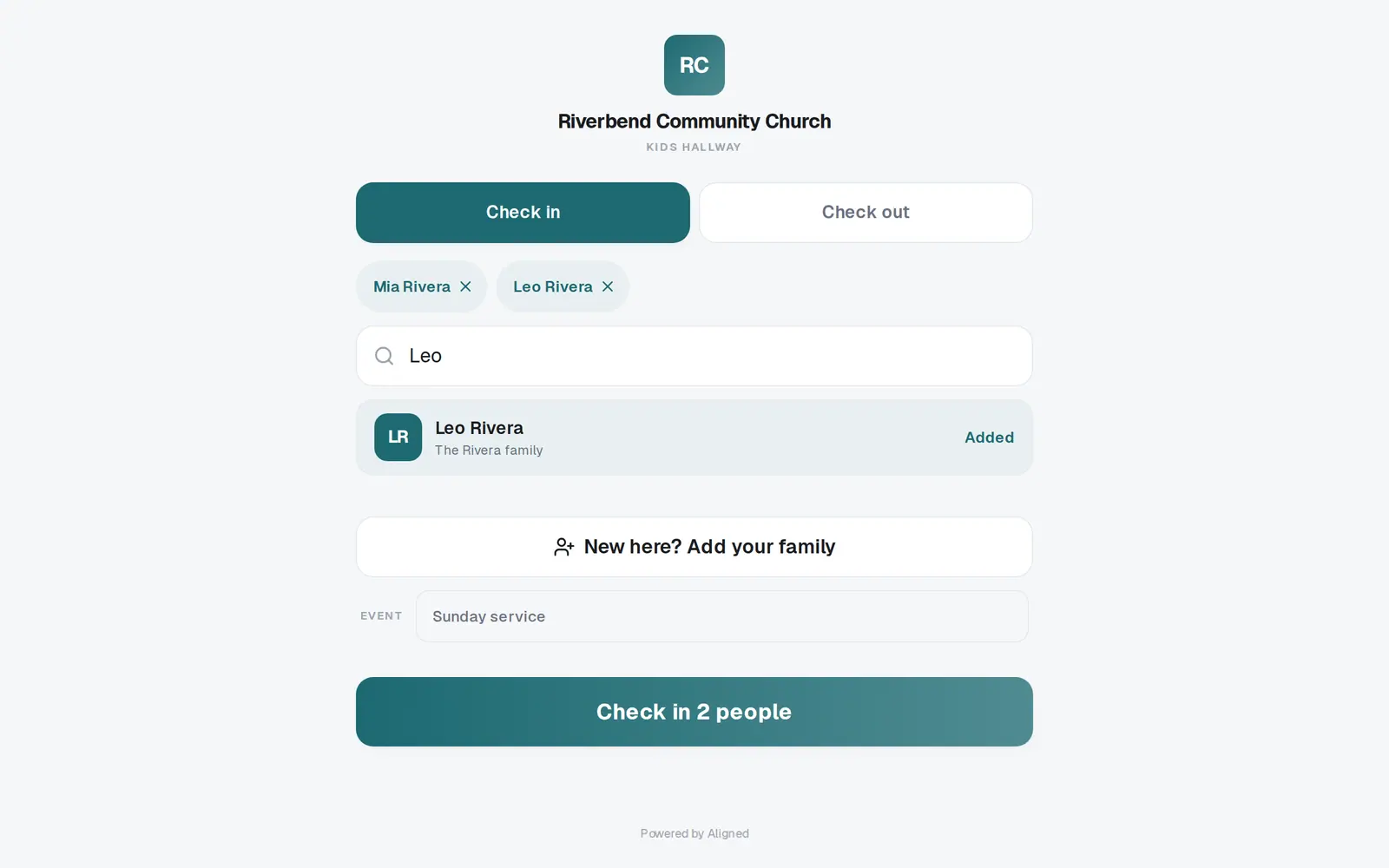
1/4 · Check a family in at the station
Good to know
- Choosing a printer: the station sends tags in ZPL, the label language Zebra printers use, over USB. Look for a USB thermal label printer that lists ZPL support. The tags are laid out for 2 × 1 inch labels.
- Print a test tag on the computer you'll use before your first Sunday, and again each Sunday morning. Printers vary, so don't wait for a line of families to find out.
- Plan a printer for every 40 kids checking in at your busiest time. That's the rule Go Live's Kids Check-in plan uses when you tell it you have a label printer.
- Each tag carries the child's name, the event, the security code, and your church's name with the date. The pickup receipt carries the same code in large type.
If it’s not working
I don't see Print label, only Print
Print label only appears in browsers that can talk to USB devices, like Chrome and Microsoft Edge. On an iPad or iPhone, and in Safari or Firefox, you'll see Print only. Open the station in Chrome or Edge on the computer your printer is plugged into.
It says "Couldn't reach the label printer — use Print instead."
The browser couldn't send to the printer: it wasn't picked in the list, or it's unplugged, off or busy. Check the USB cable and power, press Print label again, and pick the printer. Meanwhile, show the parent the code on screen or press Print.
Nothing comes out, or the tag prints wrong
Your printer may not understand ZPL. Check its specs for ZPL support. If it doesn't have it, it can't print these tags, so use Print or show the code on screen instead.
I can't find a print button in Manage → Check-ins
Tags print from the check-in station, on the code screen after each check-in. Manage's Check-ins page shows today's check-ins and your stations, but it doesn't print.
Next, you might want to
- Check kids in safely on Sunday morningSet up a check-in station, open it on a lobby tablet, decide on guest check-in, and plan the Sunday you start.
- Check kids out at pickupMatch the parent's security code, check the family out, and note who else is approved to pick up a child.
- Check a family in without a kioskCheck people in from the welcome desk or the office, and hand the family their pickup code.