Check kids out at pickup
Pickup is the moment that matters most for a child's safety, and the busiest. Every family that checks in leaves with a security code. At pickup, that code checks the whole family out in one step, whether you're at the station or in Manage.
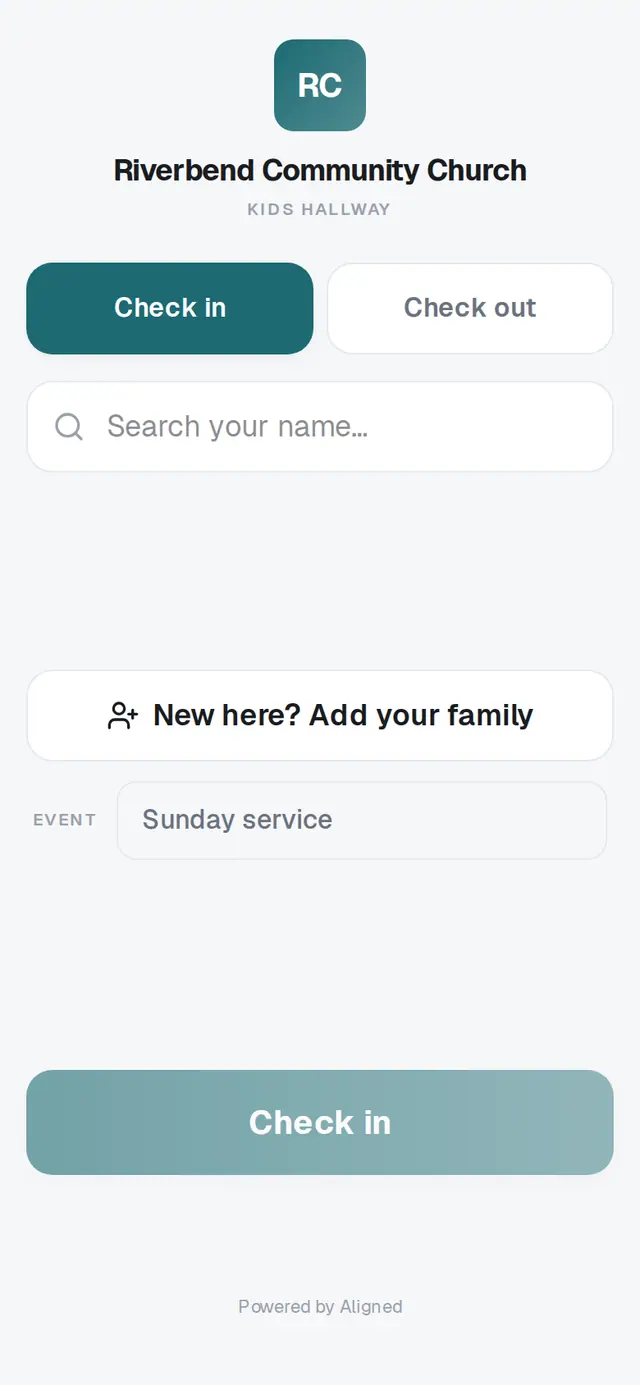
1/6 · On the check-in station, tap Check out
Good to know
- Go Live's Kids Check-in plan gives volunteers one rule for the door: never release a child without the matching code, even to a familiar face.
- Link from the child's profile: the person you pick is the one approved to pick up that child. On the other person's profile, it shows as "may be picked up by them".
- You can also tell the chat: "Grandma Sue can pick up Mia Rivera". It shows the link on a button before anything is saved.
If it’s not working
It says "That code doesn't match anyone still checked in today."
Check the code with the parent. Codes are for today only, and a code that was already checked out won't work twice. If it still doesn't match, get your kids director before releasing the child.
The parent lost their code
Look the family up in Manage → Check-ins under Recent check-ins. Each row shows the family's code, and Check out works from there once you're sure who they are.
The approved pickup doesn't show at the station
It isn't meant to: the station goes by the security code. Approved pickups are on the child's profile in People, for your team to check.
Next, you might want to
- Check kids in safely on Sunday morningSet up a check-in station, open it on a lobby tablet, decide on guest check-in, and plan the Sunday you start.
- Print name tags and choose a label printerPrint a name tag for each child and a pickup receipt at the check-in station, and know which printer and browser will work.
- Check a family in without a kioskCheck people in from the welcome desk or the office, and hand the family their pickup code.