Change, pause or delete an automation
Automations need the odd bit of upkeep: the welcome text still mentions last year's service time, or the summer schedule means a reminder should rest for a while. Every automation can be changed, paused or deleted from its own card.
About 3 minutes Part of Aligned ChurchUpdated September 29, 2026
aligned.church/church
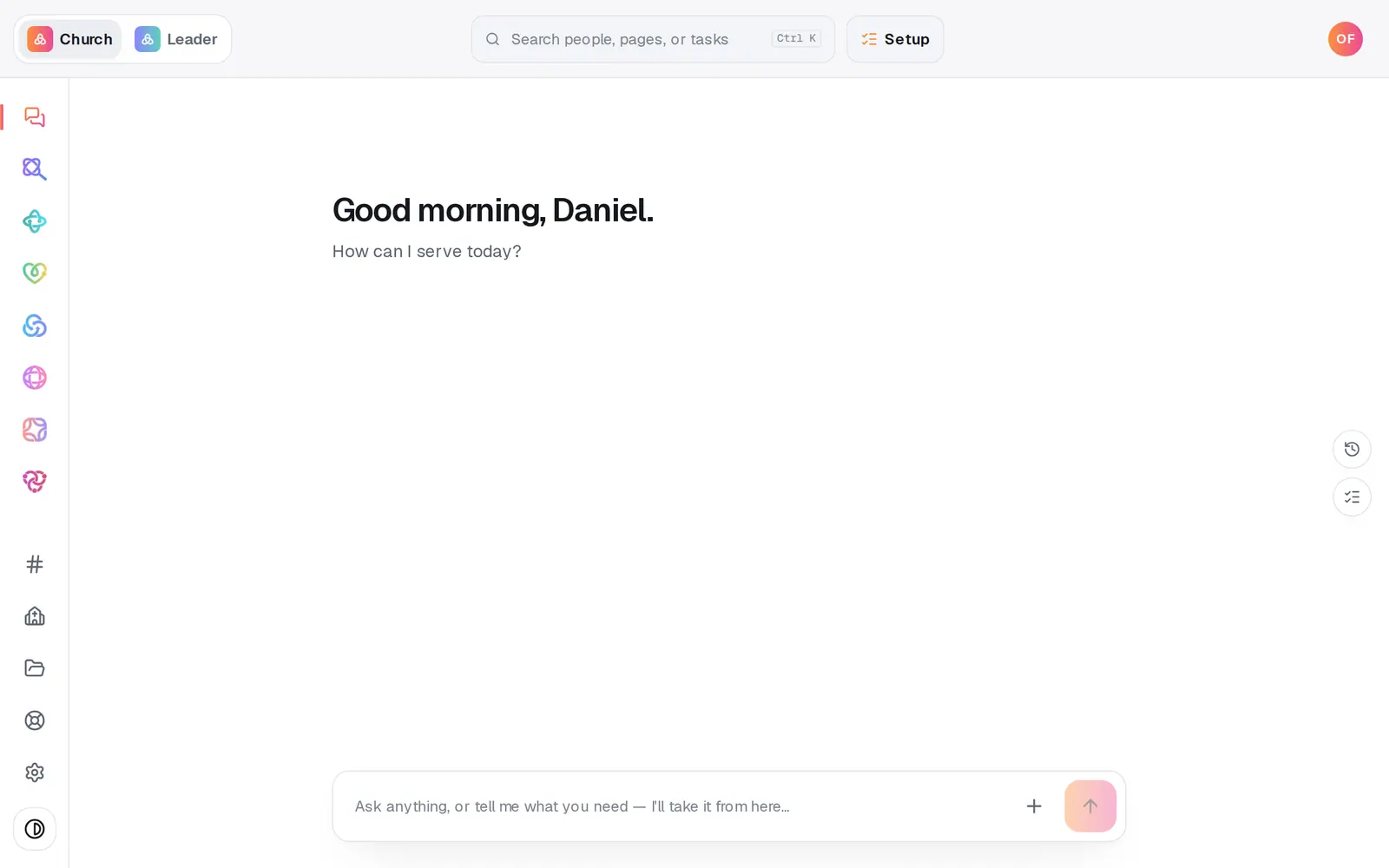
1/6 · Open Automations from the left rail
Before you start: A seat that can make changes in Automations. Pausing and editing work any time. Turning an automation back on waits until your church has finished setup.
Good to know
- In the chat, “pause the birthday text” pauses it straight away. “Change the welcome text to say …” shows you the new version and changes nothing until you tap the button.
- Manage → Follow-ups lists your automations too, under Automations, with pause and delete buttons. The delete button there removes the automation without asking first, so take care.
- If a colleague has the same automation open, a line at the top of the builder says so and offers Take it over. Nothing is locked, and they're told if you take it over.
If it’s not working
It says “Ready to make this live?” when I turn it back on
Turning an automation on waits until your church has finished setup. Press Setup at the top of the screen and finish it. Pausing and editing don't need it.
I don't see the pencil, pause or trash buttons
Your seat can see Automations but not change them. Ask your church's owner for a seat that can make changes.
It says “That didn't save — try again.”
Press Save changes again. Your edits stay in the builder until they save.
I deleted an automation by mistake
Deleting can't be undone, and its run history is gone too. Build it again with Add new, from the same recipe or by hand.
Did this help?
Next, you might want to
- Put follow-up on autopilotStart from a ready-made recipe, like a welcome text or a prayer alert, and turn on your first automation.
- Build your own automationSet up your own “when this happens, do that”, by hand or by describing it, including team chat posts and webhooks from other apps.
- Check whether an automation ranSee what your automations did today, what they skipped and why, and what to fix when one didn't fire.
- Test an automation before it goes liveSee who an automation would have caught last week, and send its email or text to yourself before you turn it on.