Put follow-up on autopilot
The follow-up that matters most is the easiest to forget in a busy week: the welcome text, the heads-up that a prayer request came in. An automation does it every time, without anyone remembering. Start from a recipe, check it over and turn it on. It takes about five minutes.
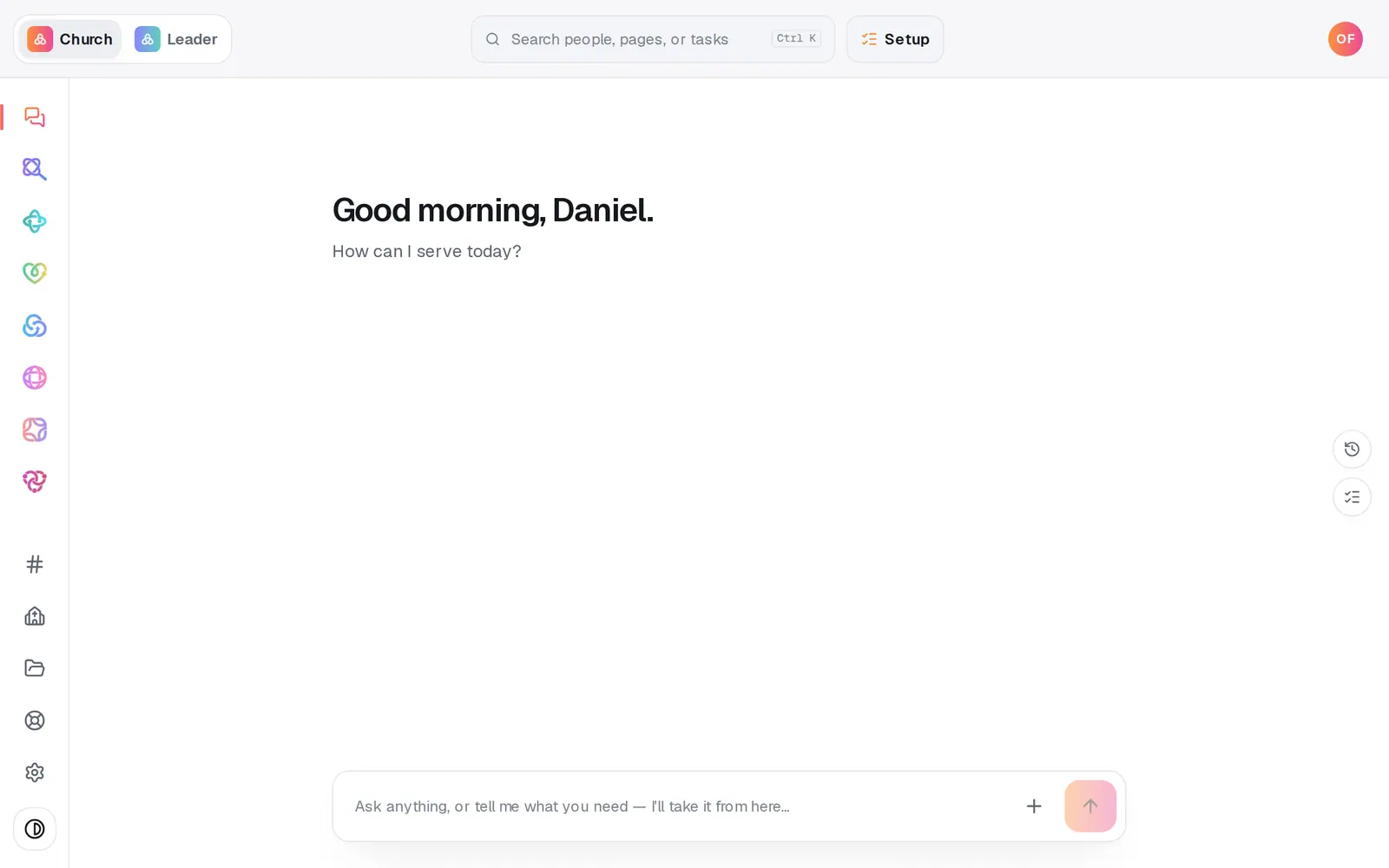
1/6 · Open Automations from the left rail
Good to know
- No texting number yet? Start with Never miss a prayer request. It notifies your team the moment a request comes in and needs nothing else set up.
- You can describe it instead. Type “when someone visits for the first time, text them a welcome” in the chat, and it builds the automation paused for you to review and turn on.
- Want more than one step, like a text now and a reminder in two days? Press Add step in the builder. A recipe is only a starting point.
If it’s not working
It says “Ready to make this live?”
Turning an automation on waits until your church has finished setup. Press Setup at the top of the screen and finish it. Meanwhile Save without turning on keeps your work, paused.
It's turned on, but nothing has happened
An automation only reacts to things that happen after it's turned on, so the people already in your records aren't messaged. Give it a new person or a new prayer request, then look under Activity.
The text step never sends
Texts go out only once your church's texting number is approved and live. Until then each run is skipped, and Activity says the number isn't approved yet. People who replied STOP are always skipped.
Next, you might want to
- Build your own automationSet up your own “when this happens, do that”, by hand or by describing it, including team chat posts and webhooks from other apps.
- Check whether an automation ranSee what your automations did today, what they skipped and why, and what to fix when one didn't fire.
- Test an automation before it goes liveSee who an automation would have caught last week, and send its email or text to yourself before you turn it on.
- Send birthday texts automaticallyTurn on the birthday recipe so everyone gets a happy-birthday text from your church on their day.