Set reminders and to-dos with your assistant
The call you promised to make on Thursday is easy to lose between Sunday and Sunday. Tell your assistant what to remind you about and when, in plain words, and it nudges you at that time — once, or every week. A to-do list works the same way.
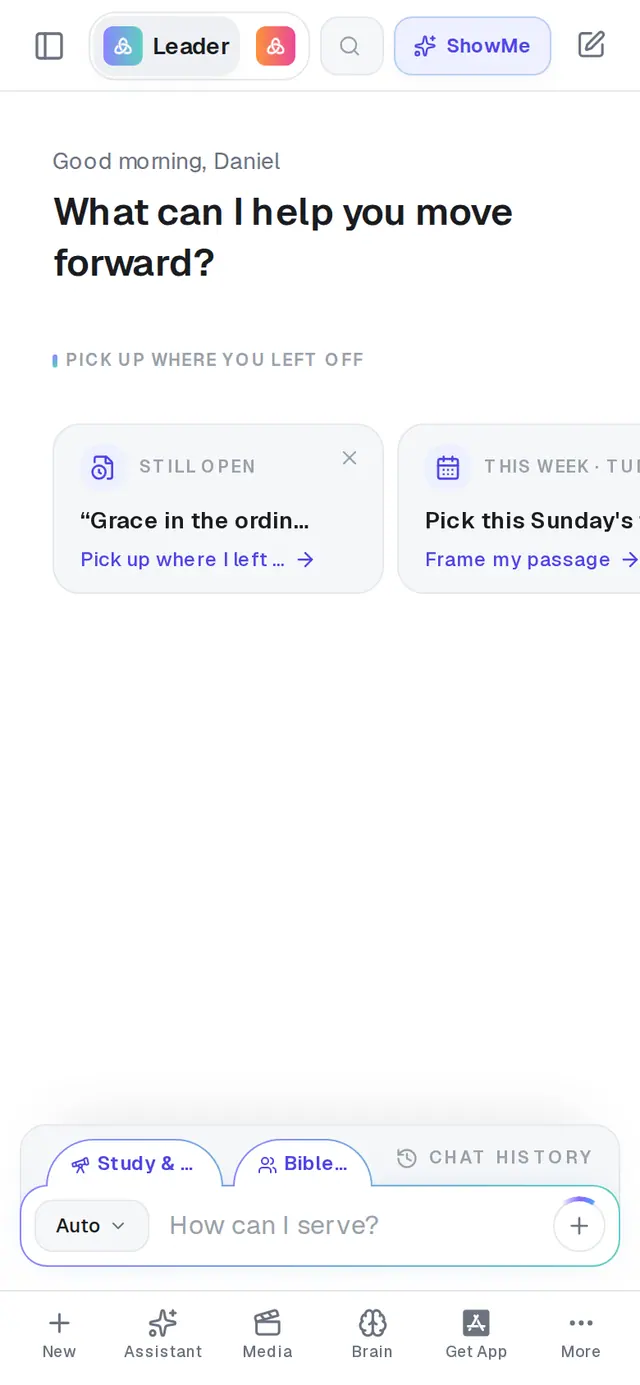
1/7 · Tap Assistant in the bar along the bottom
Good to know
- A one-off reminder fires once, and that's the end of it. There's no list to see or change it afterwards, and it doesn't show in Automations, Saved Work or your daily brief.
- Naming a teammate on a to-do — “Sarah: update the volunteer schedule by Friday” — puts their name on the line, but it doesn't tell them. To let them know, ask your assistant to draft them an email.
- Just finished a meeting on your connected calendar? Your Assistant's opening screen may ask how it went and help you list the follow-ups.
- Once your phone is paired, you can text your assistant a reminder too — “Remind me tomorrow morning to call Grace”.
If it’s not working
It asked “What time should I send that recurring reminder?”
A repeating reminder needs a time. Answer with one — “7am” — and it's set.
“The free plan includes one automation. Upgrade to Pro for unlimited automations.”
On the free plan, a repeating reminder counts toward your church's 1 automation, and it's already in use. Your daily brief, one-off reminders and to-do lists don't count. Delete one you don't need in Automations, or move to Pro for no limit.
The reply says it saved the reminder but couldn't turn it on
Nothing arrives until it's on. Ask again in a moment, or open Automations and turn it on there.
My reminder came a few minutes after the time I asked for
That's expected — reminders land within a few minutes of the time you set, not to the second.
I asked the assistant to tick something off, and it said it did
Your assistant can't change the checklist, so nothing changed. Open the plan and delete the line yourself — the list in Saved Work is the one that counts.
Next, you might want to
- Meet your personal assistantOpen your assistant, see what it can take off your plate, and clear its history when you want a fresh start.
- Get a daily brief every morningTurn on a short morning summary of your calendar, to-dos and church numbers, and choose what goes in it.
- Change, test or pause an automationChange an automation's steps, test a step on yourself first, then republish it, pause it or delete it.
- Text your assistant from your phonePair your mobile number, then text your assistant anytime — for reminders, your brief, or a quick question between visits.