Write a church policy or process
Most church processes live in one person's head until that person is on vacation. Describe the process or policy you need and Aligned drafts it as a clear document — owners, timing, a checklist — ready to edit, hand to your team, or put on autopilot.
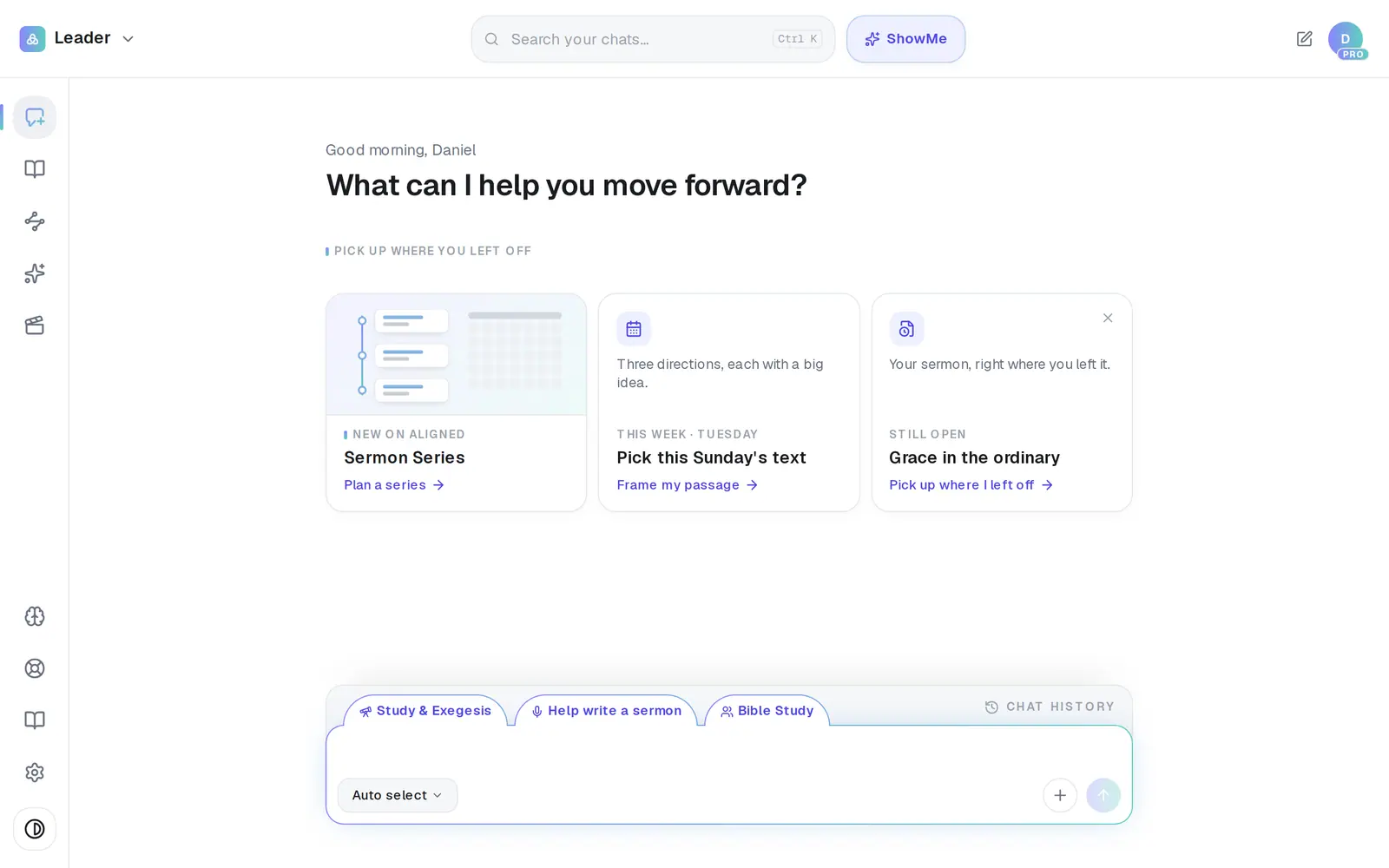
1/6 · In a new chat, ask for it — “Draft a first-time guest follow-up process for our church”
Good to know
- Writing a policy that touches child safety, money or employment? Ask Aligned to flag anything in the draft that needs legal or safety review.
- Automations that start from something happening at church — a new person added, a first gift — need Planning Center connected. A schedule (“every Monday at 8am”) doesn't.
- The same document can grow with you: open it from Saved Work later, ask for the changes in a new message, then press the bookmark (Save this) and choose Update “…” to keep them in your saved copy.
If it’s not working
My request came back as an answer in the chat, not a document
Say what you want written — “Draft a … process” or “Write a … policy”. A question about a process, like “how should we follow up with guests?”, is answered in the chat instead.
There's no Automate This Process button
It's only on a Church Process document. A policy that came back as another kind of document won't have it — ask again, starting with “Draft a … process” or “Write a … policy”.
Automate This Process opened the Pro window
The free plan includes 1 automation, and your church already has one — a repeating reminder you set up with your assistant counts too. The church's owner can delete one you no longer need in Automations — or move to Pro for no limit.
Publish says “Connect Planning Center before publishing.”
The automation starts from something in Planning Center, so it has to be connected first. Connect it, then press Publish again.
Publish says “This automation contains steps that cannot run yet.”
One of its steps can't run as written, and Publish doesn't say which. Select a step and press Test step — it lists what to fix. Fix those steps, then press Publish again.
Next, you might want to
- Put a weekly report or task on autopilotBuild your first automation — a Monday giving report, a heads-up when someone gives for the first time, or a task for a teammate.
- Change, test or pause an automationChange an automation's steps, test a step on yourself first, then republish it, pause it or delete it.
- Connect Planning Center or your church softwareLink Planning Center, Breeze, Church Community Builder, Givebutter or Donorbox so your assistant can answer from your church's real giving, people and serving data.