Change your website's colors, fonts and look
Your site should feel like your church, whether that's warm and traditional or bold and modern. The Style panel changes the whole look in a few clicks, and your site updates behind it as you go, so you can try things out without committing to anything.
About 5 minutes Part of Aligned ChurchUpdated September 29, 2026
aligned.church/church
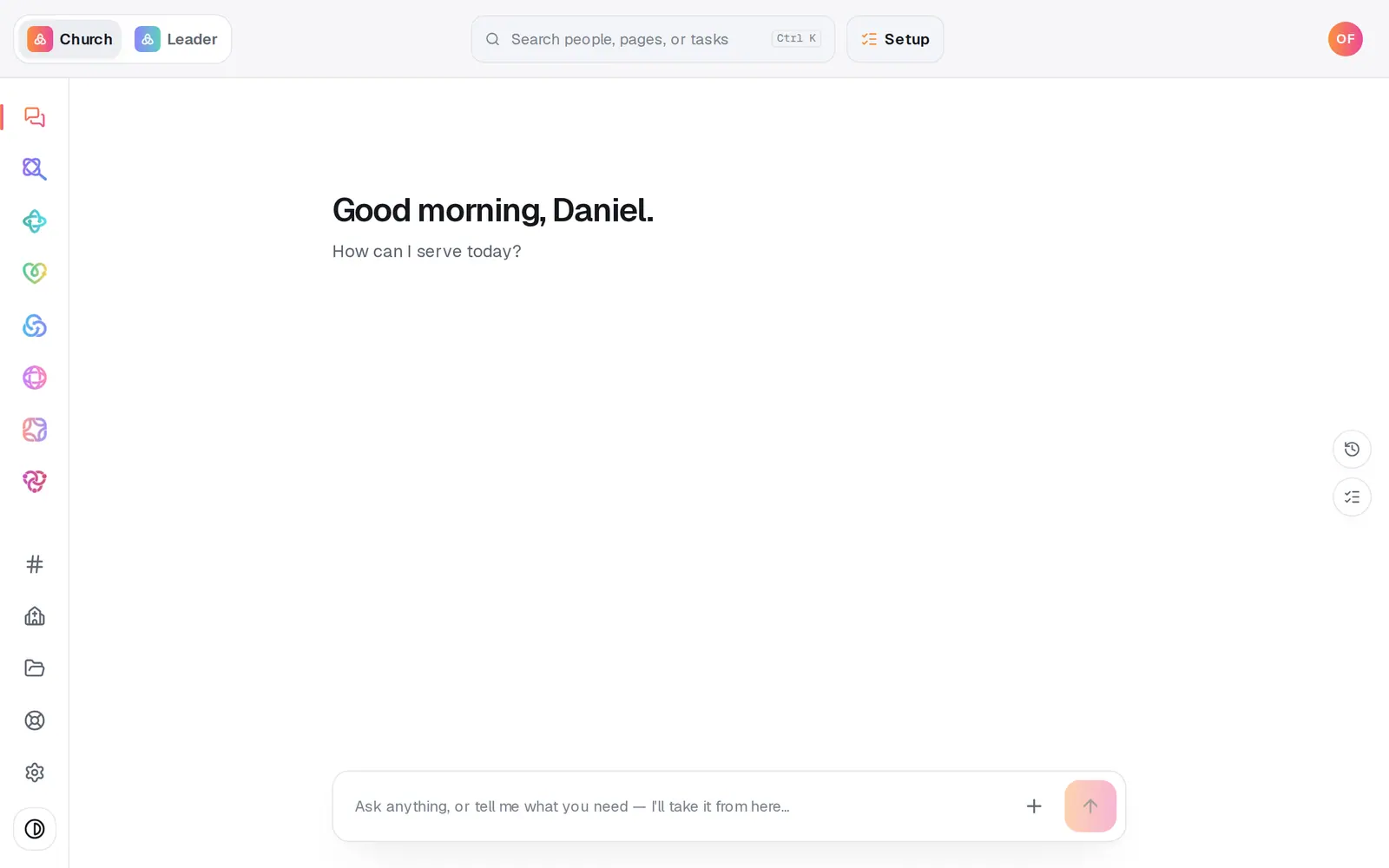
1/7 · Open Website from the left rail
Before you start: Your website has been built.
Good to know
- Can't decide? Compare two looks, at the bottom of Site style, shows two designs side by side with your own words and photos. Each has a button with its design's name, like Use Evergreen; press the one you like, and you can undo it.
- Colors look wrong after a rebuild? Upload your real logo under Identity on the Site details page. Aligned takes your colors from it, and the Style panel can change them either way.
- Your giving, check-in and sign-up pages borrow your site's colors only once the site is published, and a brand set on your church's page wins over them.
- Changed your mind? Undo at the top of Website steps back each change.
If it’s not working
There's no Style button
It only shows while you're editing. Press Edit at the top of the preview.
My new colors aren't on my giving page
Those pages pick up your site's colors after you publish, and a brand set on your church's page takes priority. Publish your site, or change the brand there.
The new look isn't on my live site
Style changes go live when you publish. Press Publish at the top right, then the publish button on the list of waiting changes.
Did this help?
Next, you might want to
- Add your photos to your websiteUpload photos or bring in Drive folders, place one exactly where you want it, or let Aligned fill every empty spot.
- Fix a typo, change a headline or move a sectionClick any words on your site to change them, move a section up or down, and add new sections from the Sections list.
- Undo a change or restore an earlier versionStep back your last edits with Undo, or preview and restore any earlier version of your site from Version history.
- Update service times and address on your siteChange your service times or address in one place, and your site and your church's record both use the new ones.