Choose when Team Chat notifies you
Your phone shouldn't buzz for every coffee order in #general, but you don't want to miss a question meant for you. Team Chat's Notifications are yours alone: what pushes to your phone, what you get by email, and how loud each channel is.
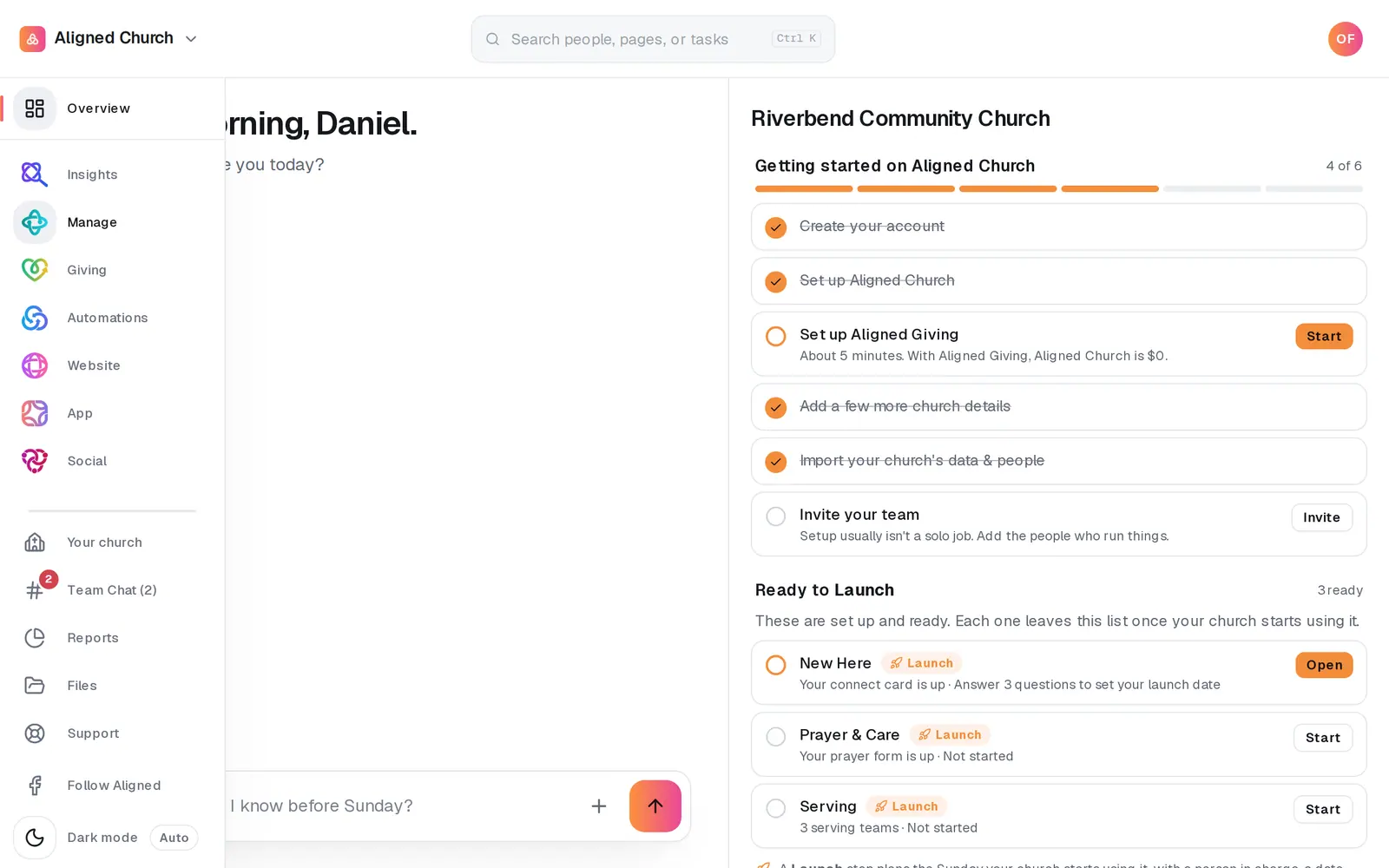
1/6 · Open Team Chat at the bottom of the left rail
Good to know
- To change one channel from where you are, press the bell at the top of it, beside the star. Notify me in #… offers Every new message, Only @mentions and Nothing (mute).
- Turn off Count new channel messages, under The red count, and a channel counts only what's meant for you: @mentions of you, @channel and replies in your threads. Direct messages can't be muted, and they always count.
- In the Aligned app on your phone, if notifications aren't on for Aligned there yet, the first time a direct message is on your screen it asks “Get a notice when someone messages you?”. Press Turn on notifications, then allow them when your phone asks. It asks once on each phone.
If it’s not working
I don't get a push when someone posts in a channel
A channel message that isn't for you is never a push: it adds to your red count while Count new channel messages is on. For a push on every message in a channel, set that channel to All.
I stopped hearing anything from one channel, even @channel
That channel is muted for you: its name is gray with a crossed-out bell. A muted channel stays silent even for @channel or an @mention of you. Set it back to Mentions or All.
It says “Notifications are off for Aligned on this phone.”
Your phone is keeping Aligned's notifications off. Turn them on for Aligned in your phone's Settings.
How do I stop the Team Chat emails?
Switch off Email me what I missed here. Or, in one of the emails, press Turn off these emails, then Stop Team Chat emails. Your pushes stay as they are.
Next, you might want to
- Message your staff in team chatPost to your whole staff, make channels for smaller teams, and hand a request from the chat to Aligned with one tap.
- Send a private message to someone on your teamStart a direct message in Team Chat with one person on your staff, or a group, that only the people in it can read.
- Use your church workspace on your phoneThe bar along the bottom, the way back to the chat, the More sheet, and where everything else lives on a phone.