Pull your old website's details in
Your current website already says when you meet, where you are and who's on staff. Instead of typing it all again, Aligned reads the site and shows you what it found. Nothing changes until you approve it, and it never writes over what you've already set.
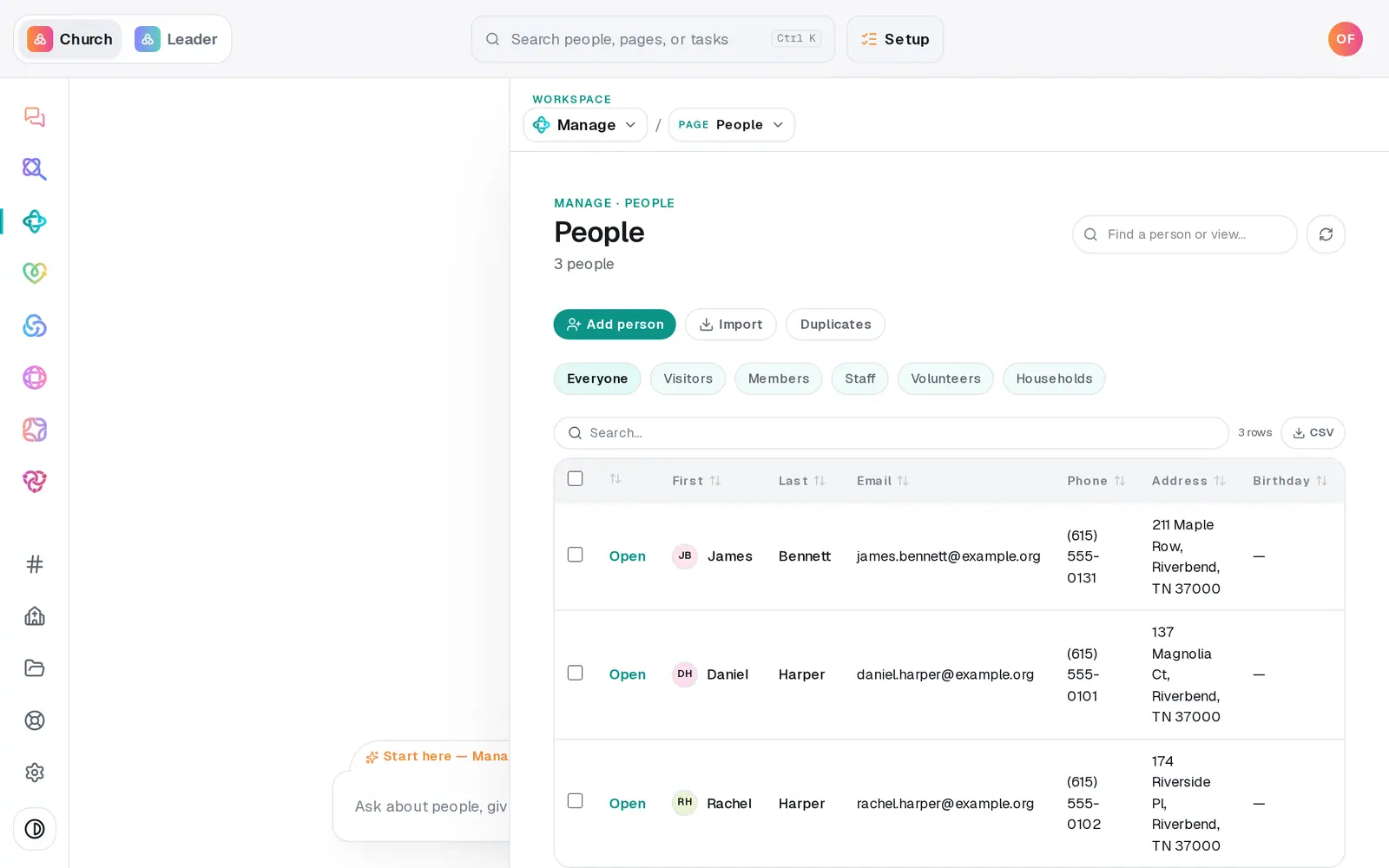
1/7 · Go to Manage → People and press Import
Good to know
- Building your Aligned website from your current one? It's the same read — if the site interview scanned your site in the last few minutes, the Website tab shows that read instead of scanning twice.
- Scan again always reads your site fresh — use it after you've changed the old site.
- Had a blog on your old site? Its posts come across too, word for word, and show under SEO's Articles marked From your old site.
If it’s not working
It says it couldn't get the details out of the site this time
The pages were read but the details weren't. Nothing has changed on your site. Press Scan again in a minute.
It says "We couldn't start that scan just now"
Check the address is your church's real website, then press Scan site again.
The scan found nothing, or the wrong things
Make sure the address is your church's own site, not a page on another service, and scan again. A site that's mostly pictures has little text to read.
Something it found is wrong
Fix it in Website afterwards, by editing it or telling the Website chat. A later scan never writes over what you've set, so it won't undo your correction.
Next, you might want to
- Rebuild your current website on AlignedGive Aligned your current site's address and get a new site built from it, with your logo, colors, photos, pages, words and blog posts.
- Update service times and address on your siteChange your service times or address in one place, and your site and your church's record both use the new ones.
- Bring your people over from your old systemConnect Planning Center, Breeze or Elvanto and bring your people, families, groups, lists and events across — you approve every change.