Rebuild your current website on Aligned
Your current site already holds years of your church's words and photos, and you shouldn't have to type any of it again. Aligned reads it, asks you two quick questions, and builds a new site from what it finds. The design is new; everything on it is yours.
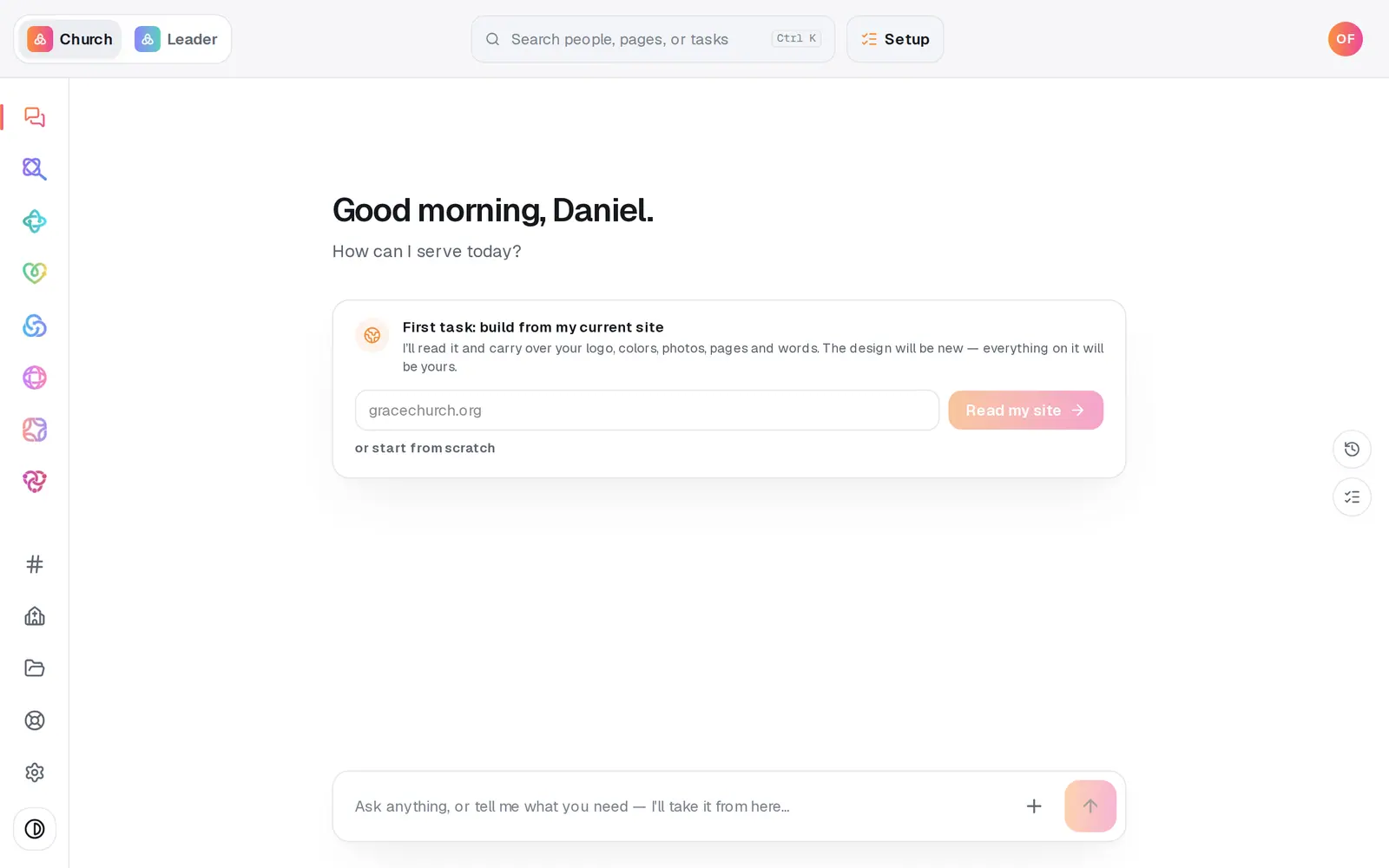
1/6 · Type your current website's address under First task: build from my current site
Good to know
- What comes across: your logo and colors, photos, the pages your menu lists, your service times, address, staff, ministries, events, groups and FAQs, and the link you use for giving. Photos land in the section they sat in on your old site.
- Blog posts come across word for word, at the same /blog/… addresses, so links you've shared keep working. SEO → Articles confirms how many came over, and each one is marked From your old site. Up to 20 posts come across per read.
- Building here never touches the site you run today. Your old site stays up until you point your domain at Aligned.
- Type a question in the chat while you answer, like “will my current website be replaced?”. Aligned answers it and your place in the questions is kept.
If it’s not working
The new site came out with very little from my old one
Some sites block automated readers or draw everything with scripts, so the read finds little. The build still runs and leaves editable prompts where your content would go. Check the address on the Site details page (the Church answer) to read it again, or add your details and photos by hand.
The read stopped part-way
Nothing half-applies, so your answers are safe. Open Site details from the page menu next to Website and change the Church answer to read your site again.
I chose “Keep my words” but some pages have new writing
Your words are kept wherever the read captured them. A page it couldn't read, or a section your old site didn't have, is written fresh so it isn't left blank.
The logo is wrong, or my service times and address are missing
Aligned uses the logo your site names in its code, and without one it can pick a photo instead. Upload your real logo on Site details under Identity. Times or an address shown only in an image can't be read; type them under Basics on the same page.
Where's the Publish button?
It appears once your site has been built. Until then the Publish page says there's nothing to publish yet.
Next, you might want to
- Put your website live and share itCheck your site on a phone, see what's ready, pick your address, go live, and share the link or QR code.
- Put your website on your own addressConnect yourchurch.org to your Aligned site: type your domain, add two records where you bought it, and Aligned makes it secure.
- Add your photos to your websiteUpload photos or bring in Drive folders, place one exactly where you want it, or let Aligned fill every empty spot.
- Change your website by telling Aligned what you wantAsk for a warmer homepage, a new page or giving moved higher, see exactly what changed, and publish it when you're happy.