See who signed up for an event
The caterer wants a number, the kids team wants names and ages, and someone's asking if there's still room. Every registration for a signup lands in one list you can read, tidy up and download. Here's where to find it.
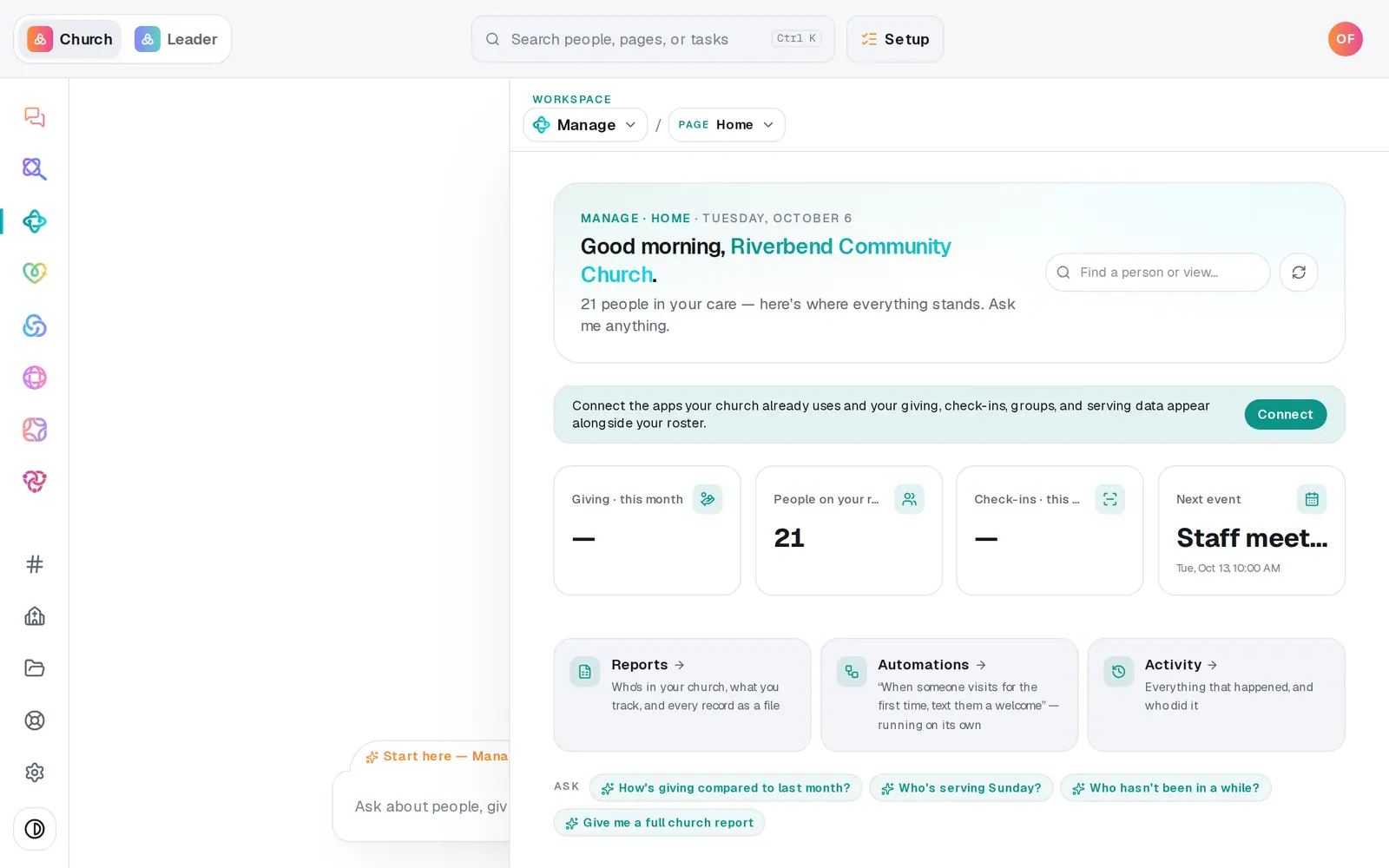
1/6 · In Manage, choose Registrations from the page menu
Good to know
- Need every signup in one file? On the Reports page, Registrations CSV downloads all of them with everyone registered (owner and manager seats).
- Want more room instead? Press the pencil on the signup, raise Capacity and press Save, then promote from the waitlist.
- A signup that comes from a connected app, like Planning Center, shows Open signup page and "Registrations are collected in" that app. The list of names stays there.
If it’s not working
Promote says "Still full — free a spot first (or raise the capacity)."
Every spot is taken. Remove someone who can't come with the ×, or raise Capacity in the signup's edit form, then press Promote again.
The list says "No one has signed up yet."
Nobody has registered so far. Share the signup's link from its share icon, or link it to a public calendar event so a Register button shows on your website.
It says "Couldn't load attendees."
The list didn't load that time. Press the people icon again. If it keeps happening, reload the page.
The person I promoted never heard from us
The "spot opened up" email goes out from your church's Gmail or Outlook, connected in Automations → Connected apps. Without one, or if they left no email, let them know yourself.