Show your Planning Center events on your site
If your calendar already lives in Planning Center, typing every event into your website twice is how dates drift apart. Connect Planning Center once and your upcoming events fill your site's events section, staying current as you change them there.
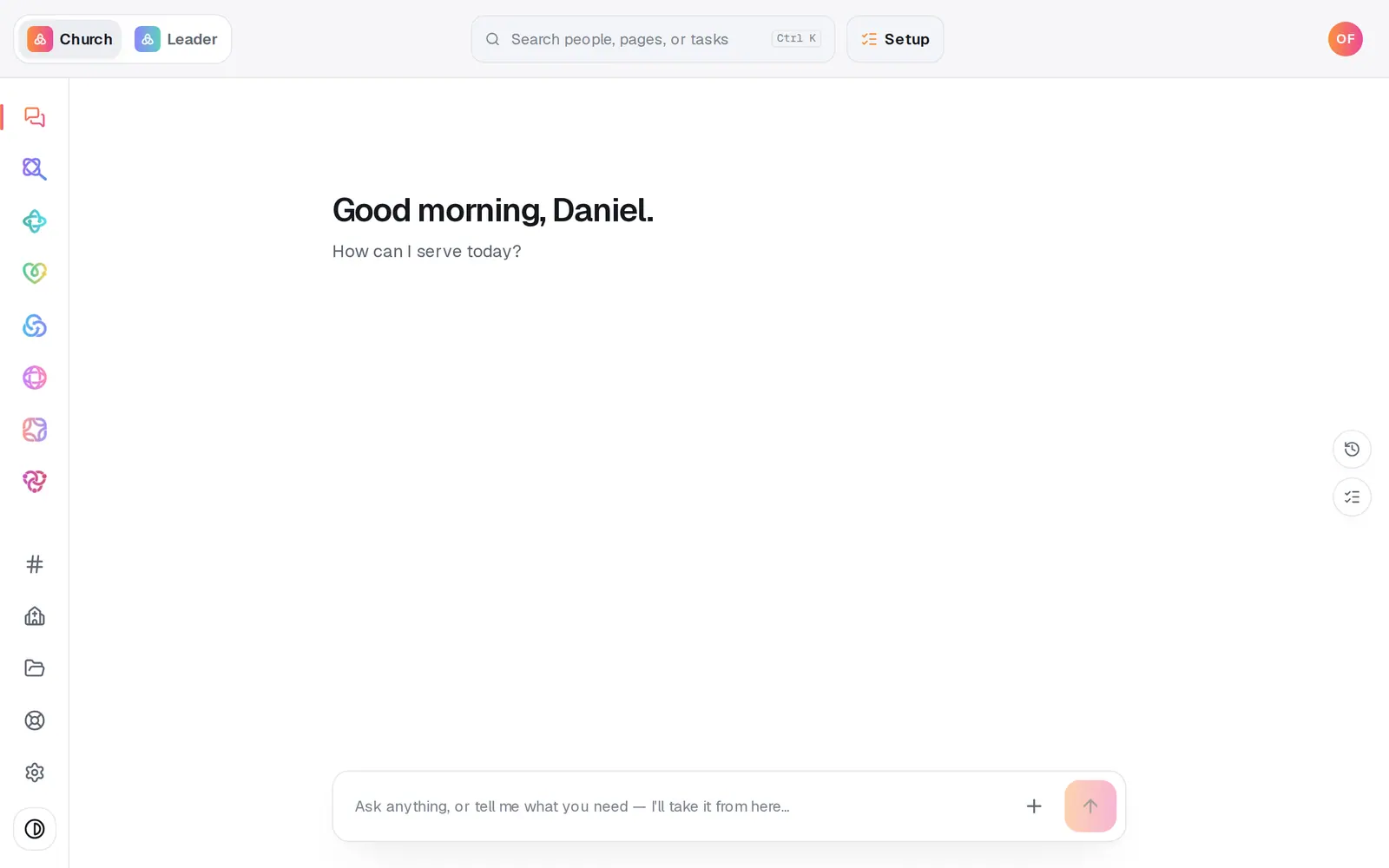
1/7 · Open Website from the left rail
Good to know
- To change an event everywhere, change it in Planning Center. Your site follows on the next sync, and Sync now brings it over at once.
- Events from Planning Center are read-only in Aligned: the Events list on your site's Content page shows them locked, and the chat won't edit them either.
- No Planning Center? Events you keep in Aligned's own calendar can show on your site too, with no app to connect. Ask the chat, like “put the picnic on the website”.
- Connect or disconnect apps any time from Automations → Connected apps.
If it’s not working
An event I added in Planning Center isn't on my site yet
Open the chip on your events and press Sync now. Only upcoming events come across, so a past one won't appear.
The card says Planning Center sent no events on its last sync
Aligned doesn't believe an empty list the first time, so the events already on your site stay up. If Planning Center still sends none a day later, they come off. To hide them sooner, turn Feed to website off.
The panel says “No source connected”
Planning Center isn't connected yet, or the connection was removed. Press Open integrations in the panel and connect it again.
I can't edit a Planning Center event on the Content page
That list is read-only so Planning Center stays the one source of truth. Change the event in Planning Center, or reword it here with Fields.
Next, you might want to
- Connect Planning Center, Breeze or your giving platformConnect the apps your church already uses, disconnect one, or ask about an app that isn't in the list.
- List your staff, ministries, beliefs and FAQsAdd, edit and reorder the staff, ministries, events, FAQs, beliefs and testimonies your website shows.
- Add an event to your calendarPut a one-time or repeating event on your church calendar, then edit it, cancel it, add a photo or book a room.
- Put your website live and share itCheck your site on a phone, see what's ready, pick your address, go live, and share the link or QR code.