Take gifts on a lobby tablet
Some people would rather give in person than on their own phone, and a tablet at the welcome table makes that easy. Kiosk mode turns your giving page into a big, simple screen that never remembers the last person who used it.
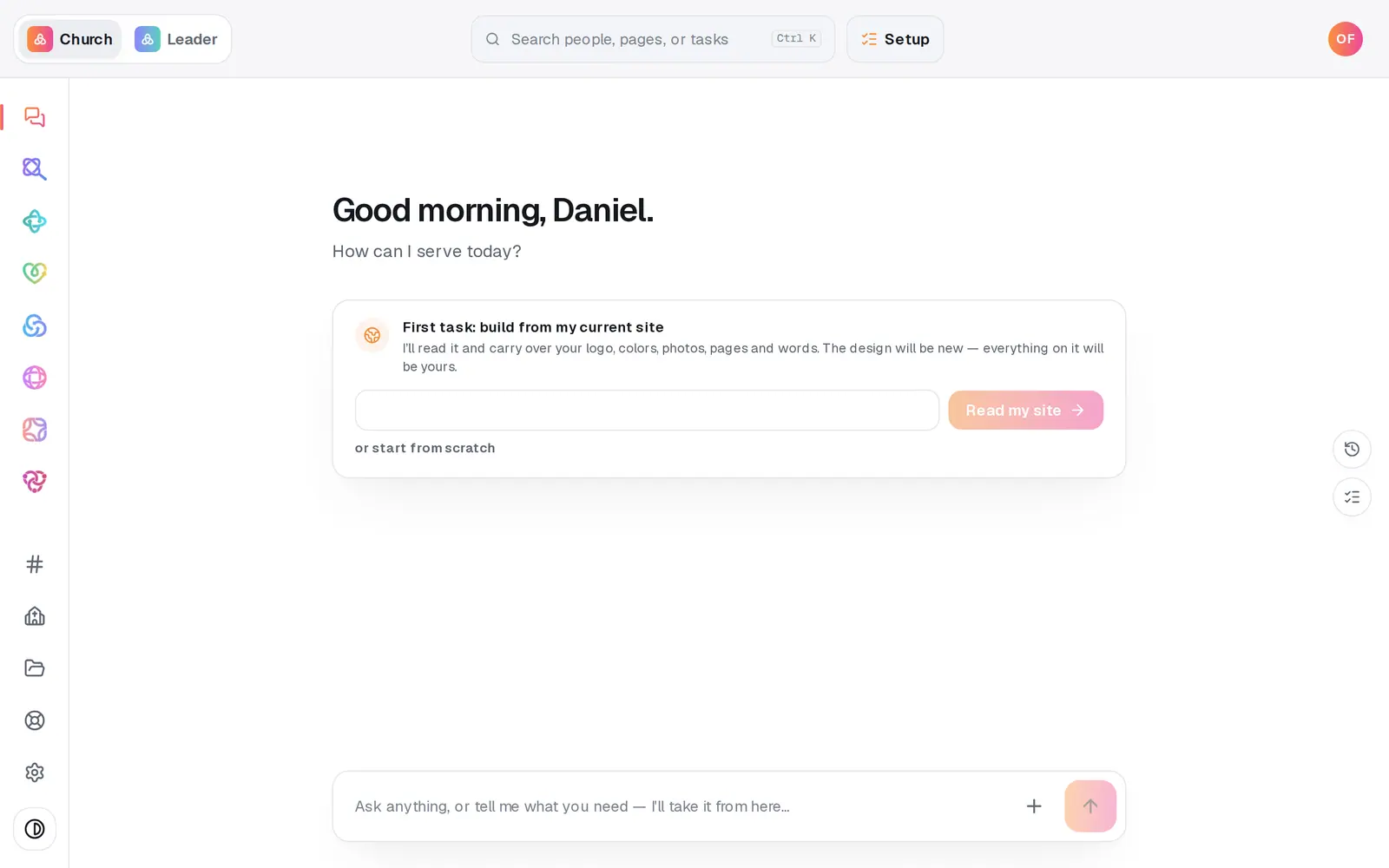
1/5 · Open Giving from the left rail
Good to know
- Bookmark the kiosk link on the tablet, or add it to the home screen, so whoever sets up on Sunday opens it in one tap.
- Turn off the tablet's auto-lock for Sunday mornings so the page is ready when someone walks up.
- Some people will still prefer their own phone. Put your giving QR code on the table beside the tablet: tap the small QR code next to Copy link for a big one you can download and print.
- Launching online giving? The Giving launch plan in Manage → Go Live puts a host beside a tablet at a giving table for the first three Sundays.
If it’s not working
The tablet shows someone's name or a saved card
It's open on your normal giving link. Add ?kiosk=1 to the end of the address: kiosk mode never recognizes anyone, so the next person always starts fresh.
It says the page isn't accepting gifts right now
Your giving page needs an approved giving application and at least one active fund on it. Open Giving → Setup to see where your application stands. If you picked funds under Funds on this page, check in Giving → Funds that one of them is still switched on.
Someone walked away before the thank-you finished
Nothing to do. The page resets itself after the countdown, or press Done — next person to start fresh straight away.
Next, you might want to
- Share your giving link and QR codeCopy your giving page's link and download its QR code for slides, bulletins, connect cards and emails.
- Announce online giving to your churchUse the Giving launch plan to pick your Sunday, have staff give first, and send the announcement with the slide and pew cards ready.
- Customize your giving pageChange the words, the amounts people tap and the funds they can pick, then see the page exactly the way donors do.
- Give online to your churchGive a one-time gift on your church's giving page, whether you reach it from a link, a QR code, its website or the lobby tablet.