Add a GIF to your message in Discussions
Another pastor shares good news, and a GIF says it better than another line of text. The GIF button in every Discussions chat searches GIPHY for GIFs rated G, and each one is checked again before your message goes.
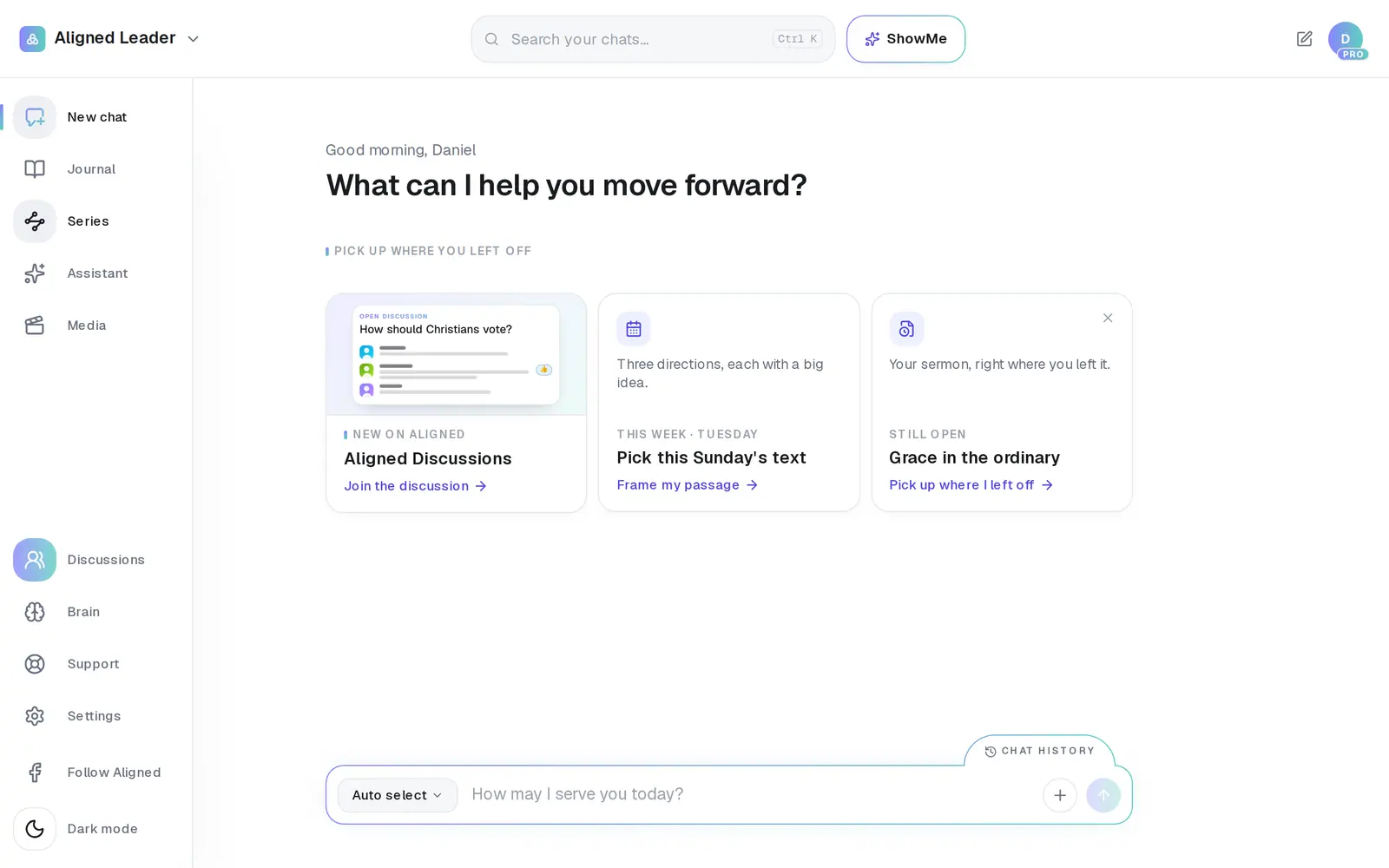
1/7 · Press Discussions on the left menu
Good to know
- On a phone it works the same way: GIF is at the left of the message box, beside the photo button.
- To send a photo instead, press the photo button beside GIF, paste one, or drag one onto the box.
- When GIF search is off, the panel says only “GIF search isn't switched on yet. You can still add a .gif with the photo button.”, and GIF can't add one.
If it’s not working
My search says “No GIFs for that search.”
GIF search finds nothing for anything sexual, nude or explicit, or for swearing, slurs, gore, suicide, self-harm or drugs, and it doesn't say which word it caught. Try other words for what you mean.
It says “That GIF can't be shared here. Choose one from GIF search instead.”
A GIF from the GIF button is checked before the message goes, and a GIPHY link pasted into your words is checked the same way: it has to be a GIF on GIPHY, rated G, and its GIPHY title can't say anything GIF search would block. Your words are still in the box: take out the GIPHY link, or the GIF with its ×, pick one from the GIF button instead, and press Send again.
It says “GIFs can't be checked right now. Try again in a moment.”
GIPHY isn't answering right now, and a GIF that can't be checked doesn't go. Your words are still in the box: wait a moment and press Send again.
It says “Up to 4 GIFs in one message.”
That's about GIPHY links typed or pasted into your words: one message takes up to 4. Take some out and send them in another message.
I pasted a Tenor GIF and it says “Only Aligned's team can share links in Discussions. GIFs still work.”
In Discussions, only a GIPHY link counts as a GIF link. A Tenor link is a web address like any other, and only Aligned's team can send those. Your words are still in the box: take the link out, pick a GIF from the GIF button, and press Send again.
Next, you might want to
- Tag a discussion question in your messageType @, pick a question under Discussions, and your message carries a link anyone can press to open it.
- Choose your username and join DiscussionsPick the name other pastors will know you by, and get a free one in one tap when yours is taken.
- Show your degrees beside your name in DiscussionsAdd up to 3 degrees, like an MDiv or a DMin, as green badges beside your username on your messages.