Connect Zapier, Make or n8n
Your sign-up form or your other church software may not connect to Aligned directly, but it probably works with Zapier, Make or n8n. Any of them can start one of your automations: Aligned gives the automation its own private address and secret, and you paste those into Zapier.
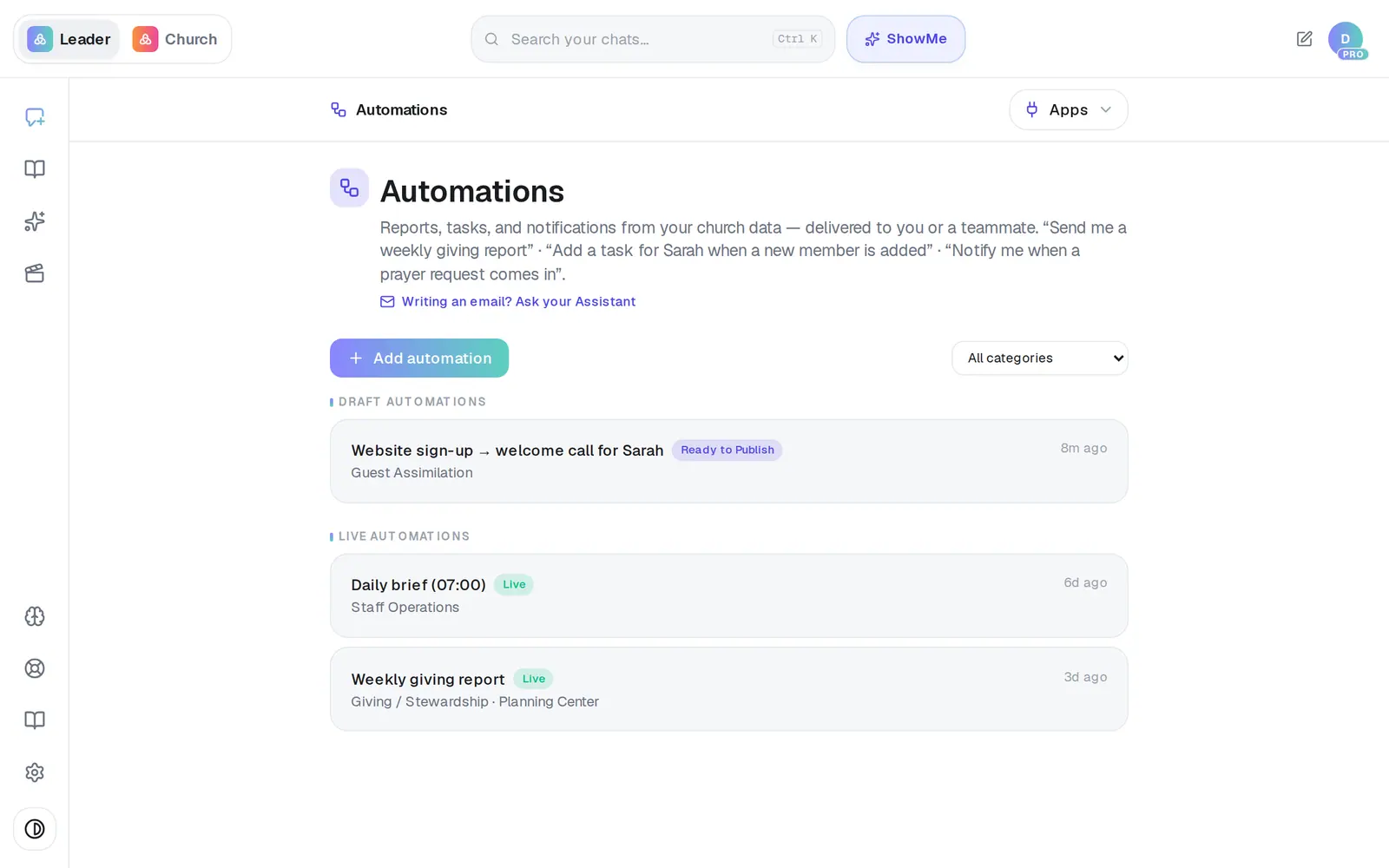
1/6 · In Automations, open the automation Zapier should start
Good to know
- Publishing again after a change, or pausing and resuming, gives the automation a new address and secret, and the old ones stop working. Paste the new pair into Zapier each time.
- The Webhook (Zapier / Make / n8n) entry under Connections → Apps is for the other direction: an automation step sending its details out to a Zapier, Make or n8n address. Its form asks for that address and an optional Signing Secret, sent as an X-AlignedAI-Signature header so the other side can check the call came from Aligned.
- Automations stay inside your church team — a report, a task or a notification for you or your staff. Zapier can start one; it can't make Aligned message your members.
If it’s not working
Zapier says it worked, but the automation didn't run
Zapier reports success even when Aligned ignores a call. Two usual reasons: the automation is paused (check for the Live badge), or Zapier is still using an old address from before you republished or resumed it. Pause and resume it to get a new address and secret, and paste both into Zapier.
I closed the window before copying the secret
It can't be shown again. Press Pause, then Resume — a new address and secret appear. Paste those into Zapier.
There's no Change app on the trigger card
The automation runs on a schedule (“every Monday at 8am”), and a schedule has no app to change. Build a new automation for Zapier to start, then change its trigger.
“You don't have permission to publish automations.”
Only the church's owner or an admin can publish. Ask one of them to open the automation and press Publish — the address and secret appear for them to pass on.
Next, you might want to
- Put a weekly report or task on autopilotBuild your first automation — a Monday giving report, a heads-up when someone gives for the first time, or a task for a teammate.
- Change, test or pause an automationChange an automation's steps, test a step on yourself first, then republish it, pause it or delete it.
- Check or fix an automation that didn't runFind out why an automation didn't send, reconnect the app it relies on, and approve runs that are waiting on you.
- Connect Planning Center or your church softwareLink Planning Center, Breeze, Givebutter or Donorbox so your assistant can answer from your church's real giving, people and serving data.