Give your staff their own login
Your associate pastor shouldn't be borrowing your password. Invite each person on your team and they get their own login that already knows your church — its tradition, its beliefs and its Church Brain — while your journal and books stay private to you. Pro includes up to 10 staff alongside you.
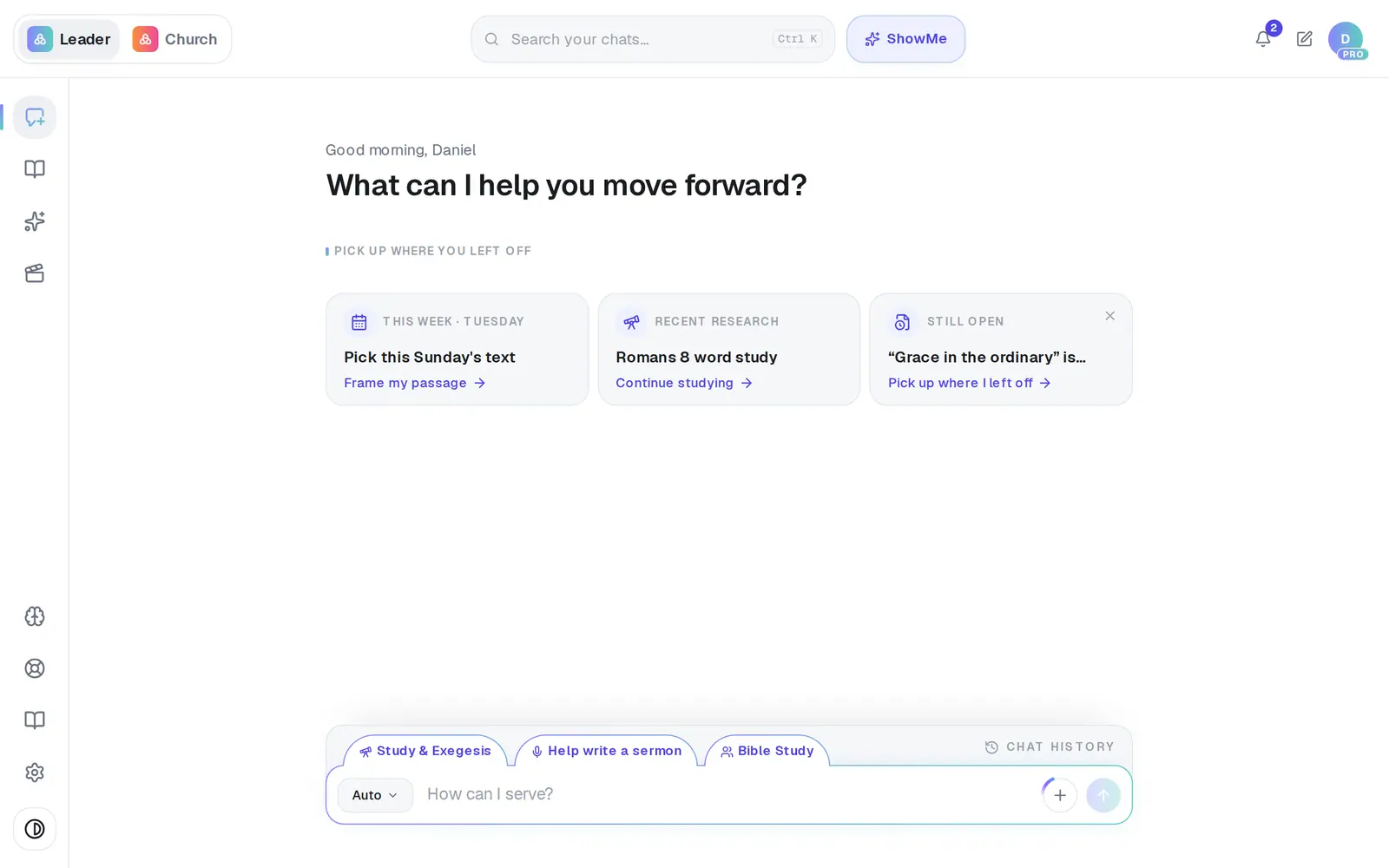
1/6 · Open Settings from the gear at the bottom of the left rail
Good to know
- If they sign up with the address you invited — even without clicking the link — they're added to your church automatically.
- Staff share your church's tradition, beliefs and Church Brain. Your journal, your books and your personal context stay private to you.
- Handing the weekly posts to someone? In Media, the card “This is a job for your comms person” sends the same invitation from there.
- Owners can change a position, control staff access to the Church Brain, or remove someone on the same tab — see Choose what your staff can do.
If it’s not working
They never got the invitation email
Press the copy icon next to their name under Pending invites and send them the link yourself by text or email. It's the same link.
They already made an account with a different email
An invitation only attaches to the address it went to. Press the bin to cancel it, then invite the address they actually use.
The Send invite button is greyed out and says my free invite is in flight
The free plan includes one invitation, and it's been used. Pro switches that seat on and adds up to 10 staff members.
It says “You've reached the limit of 10 staff members.”
Pending invitations count toward the limit too. Cancel one you no longer need, or remove someone who has moved on, to free a seat.
My staff member says their seat is saved or their access is paused
Staff seats come with Pro. If your church is on the free plan, or Pro has lapsed, turn it on in Settings → Billing and ask them to reload the page.
Next, you might want to
- Choose what your staff can doSet each person's position, control Brain access, see how your team uses Aligned, or remove someone.
- Get back in when your access is pausedFor staff: what the paused screen means, and how to ask your pastor to turn your seat back on.
- Upgrade to ProWhat Pro adds, what it costs, and how to pay monthly or yearly — on the web or from the phone or Mac app.
- Keep your church's information privateWhat stays private to you, what your staff can see, and the privacy switches you control.