Keep your church's information private
Before you put sermons, notes and prayer lists into Aligned, you want to know who can see them. Here's what stays yours alone, what your staff share, and the switches that decide the rest. The privacy policy at aligned.church/privacy has the full details.
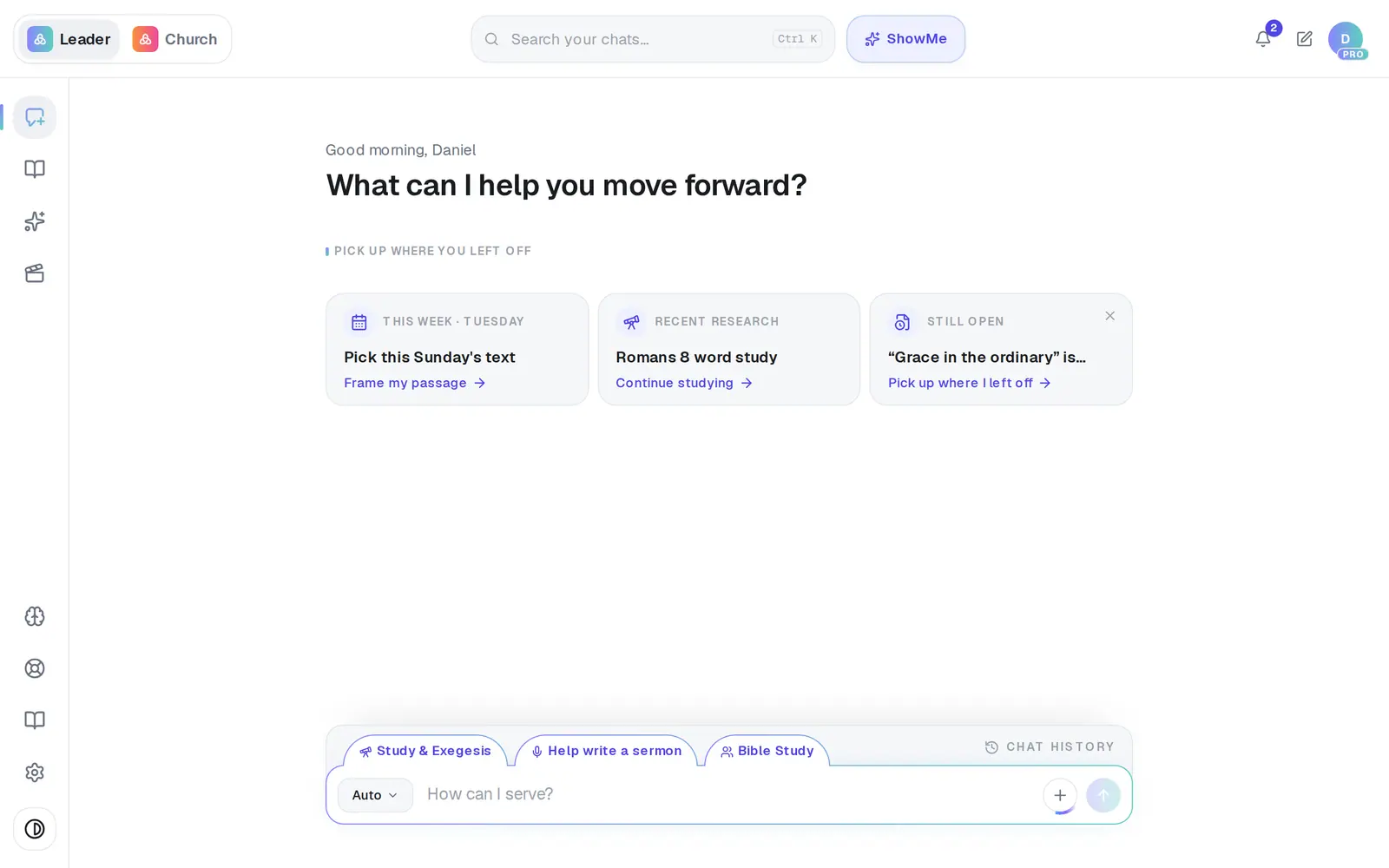
1/6 · Open Settings from the gear at the bottom of the left rail
Good to know
- Anything added to the Church Brain is shared with everyone on your church's account, and it shapes everyone's answers. Keep private material out of it.
- Your journal and your books are yours alone, even if you invite staff.
- Team momentum on the Staff tab shows totals only — never anyone's private content or journal.
- Questions about member or giving records in Aligned Church are covered by its own policy at aligned.church/church/privacy.
If it’s not working
The data switch flipped back by itself
The save didn't go through, so nothing changed. Flip it again in a moment.
It says “You haven't chosen yet.”
Your account is from before we started asking. Flip the switch either way and your choice is saved.
I don't see Staff & the Church Brain
Those switches are for the church's owner on Pro. Staff don't see a Staff tab at all.
A document says Website source and it shouldn't
Tap its pill in Documents to switch it to Keep private from site. If it says “Could not update website access for that document,” try again.
Some documents have no website pill
Only files you uploaded or pasted can be approved. Anything that came from Google Drive, OneDrive, YouTube, a podcast or a meeting stays private to your church either way.
Next, you might want to
- Give your staff their own loginInvite an associate pastor, assistant or comms person, and resend or cancel an invitation.
- Choose what your staff can doSet each person's position, control Brain access, see how your team uses Aligned, or remove someone.
- Upload your statement of faith and documentsAdd your beliefs, policies and manuscripts so Aligned draws on them, and choose which ones your website may quote.
- Delete your accountWhat deleting removes, what to download first, and how to do it yourself in Settings.