Save, download or find a graphic you made
The Media Generator gives you four options, and the ones you don't keep are gone once you leave it. Save the one you want and it waits in your church's Saved Media — for you and everyone on your team — ready to download again next week.
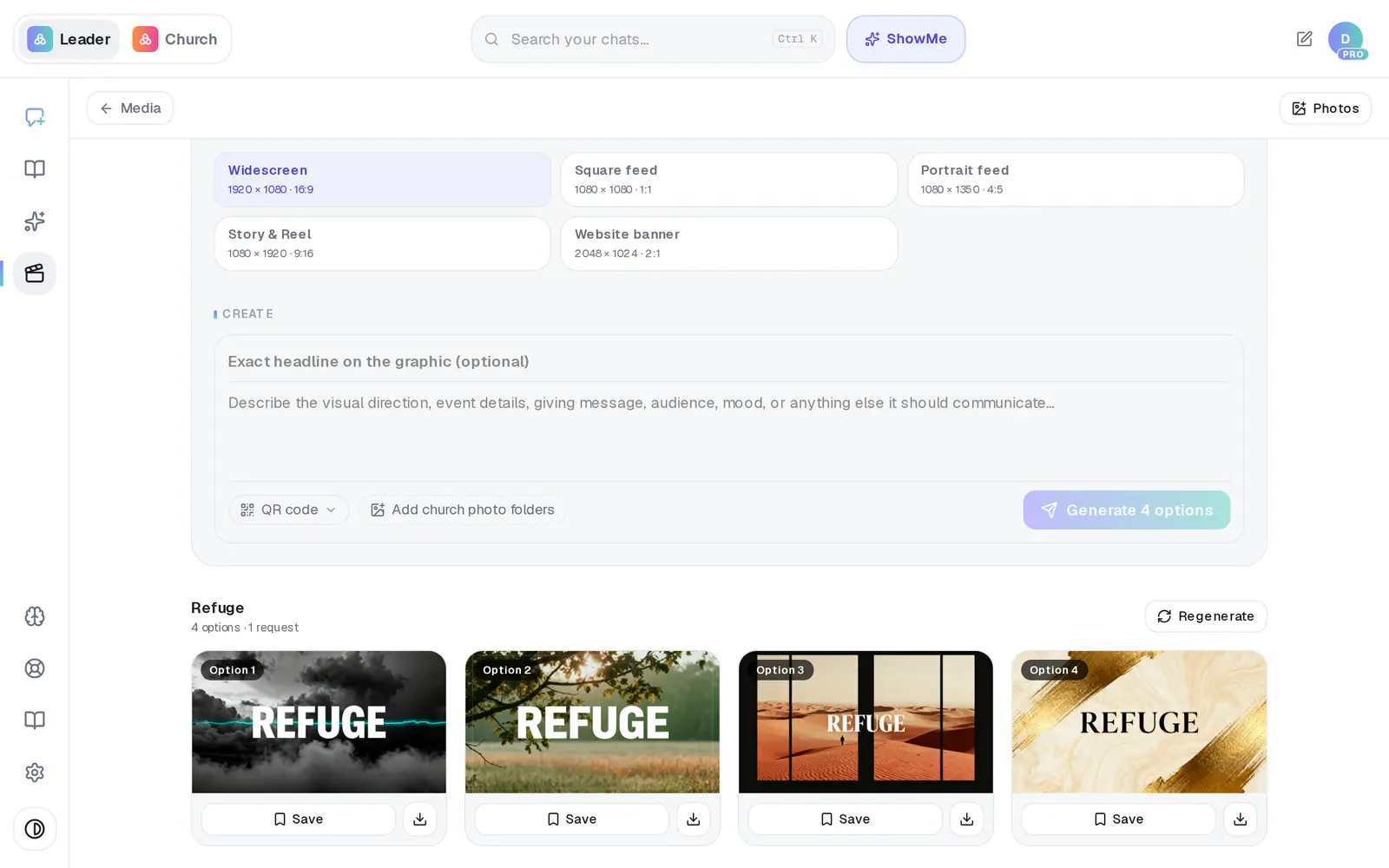
1/7 · Press Save under the option you want
Good to know
- Saved Media belongs to your church: a graphic anyone on your staff saves shows up here for everyone, and so do the ones you save.
- Regenerating adds up. On the free plan every new batch of four uses four of your 20 pictures a month, so save the one you like before you try again.
- You can't edit one option in the Media Generator — Regenerate makes whole new takes. To change one picture by describing it ("warmer light", "no words"), ask for a picture in the chat instead.
- Saved Media lists your most recently saved graphics. Download the ones you use every week, like a giving slide, and keep them in a folder of your own.
If it’s not working
The graphics I made yesterday are gone
Options you don't save or download disappear once you leave the Media Generator, and nothing brings them back. Next time, press Save on the one you want before you go.
Regenerate came out in a different style
It uses whatever style, colors and size are selected when you press it. Put them back the way they were, then press Regenerate again.
Saved Media says “No saved graphics yet”
Nobody at your church has saved one yet. Press Create a graphic, make a batch, and press Save on the one you like.
It says “Could not load saved media.”
The list didn't come through that time. Reload the page.
I deleted a graphic by mistake
A deleted graphic can't be brought back. If you downloaded it before, that copy is still safe on your computer or phone.
Next, you might want to
- Make a sermon graphicGet four finished options for a sermon slide, social post, giving slide or event graphic — in your church's style.
- Put a QR code on a graphicAdd a code for giving, sign-ups or a connect card to any graphic — saved once, and stamped on sharp enough to scan.
- Make graphics look like your churchSave a look and your colors for main, youth, kids and social graphics, and let Aligned build graphics around your own photos.
- Ask the chat for a pictureDescribe a picture in plain words, try it in another style, ask for changes, and download it.