Switch between light and dark mode
Dark is kinder at eleven on a Saturday night; light is easier to read in a bright office. One switch flips the whole app, and your choice is saved to your account, so your phone and any other computer follow it.
About 1 minute Works on the free planUpdated September 29, 2026
aligned.church/leader
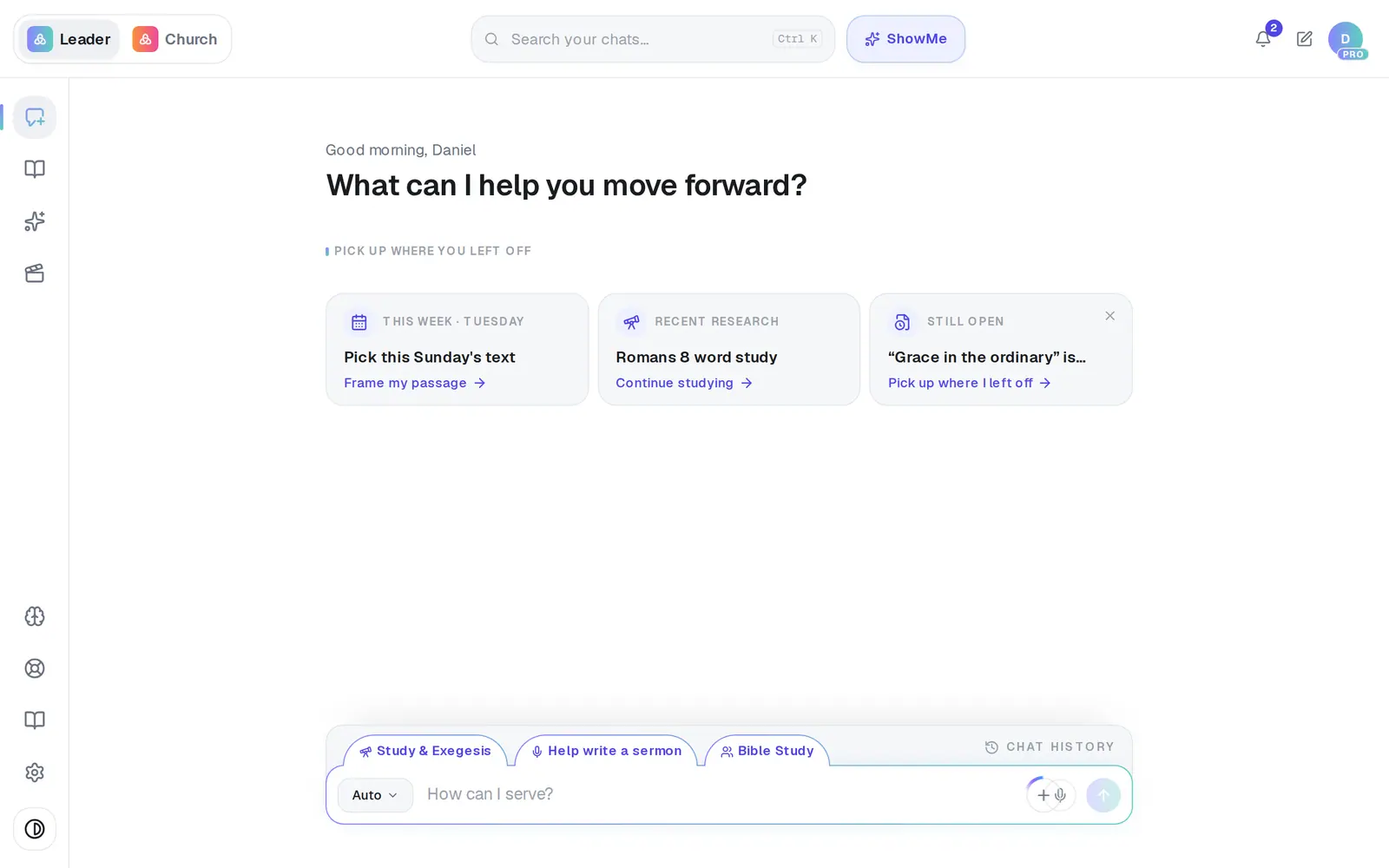
1/3 · Click the half-dark, half-light circle at the very bottom of the left rail
Good to know
- On a phone, open the menu (tap More in the bottom bar, or the menu icon at the top-left) and tap Appearance. It reads “Light · tap for dark” or “Dark · tap for light”, and the menu stays open so you can see the change.
- It's your own setting. A colleague on the same church can work in light while you're in dark.
- There's no theme option inside Settings — the circle (or Appearance on a phone) is the only switch.
If it’s not working
It's dark and I never chose dark
The welcome pages you see before signing in turn dark in the evening, a first visit can start in dark, and accounts from before September 2026 kept the dark they already had. One click on the circle picks a look and keeps it.
My phone changed too
That's by design: your choice belongs to your account, not the device. Switch it back on either one.
I was typing a card into a form when I switched, and the fields emptied
Switching the look reloads the secure card fields. Type the card again — nothing was saved or charged.
Did this help?
Next, you might want to
- Find your way around AlignedWhere chat, Brain, Media, Assistant, Saved and Settings live on a computer, and what the top bar tells you.
- Find your way around on your phoneThe bar along the bottom, the More menu and its search — where everything in Aligned lives on a phone.
- Have Aligned write in SpanishSwitch the language Aligned writes in to Español — and back to English — with one tap.