Add a page or change your menu
A food pantry, a building campaign, a page for the youth retreat: your site's pages should match what your church is doing now. Give a new page a name and a purpose, and Aligned proposes its layout and where it sits in your menu. The same list lets you reorder and hide pages.
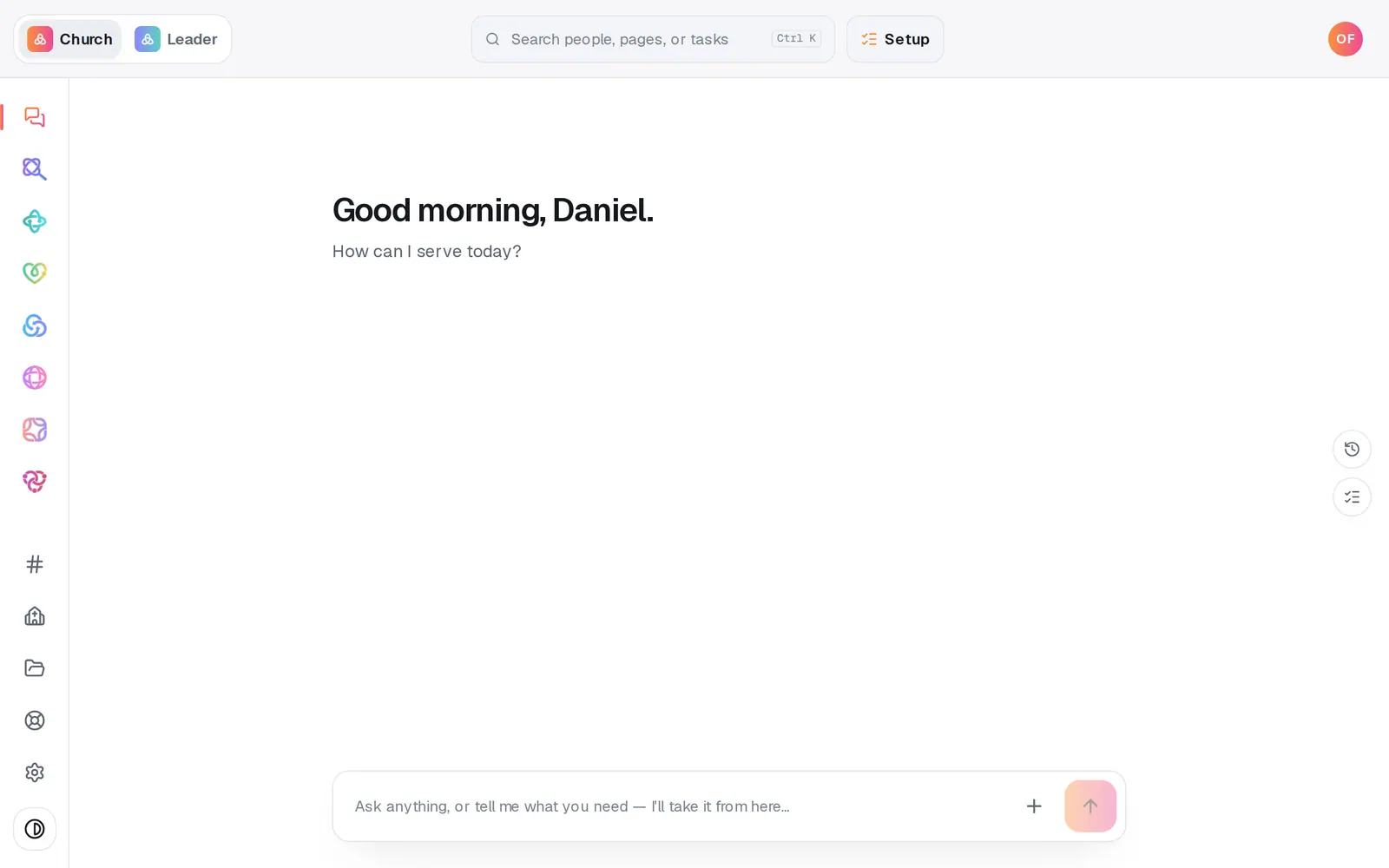
1/7 · Open Website from the left rail
Good to know
- Asking works too: “add a page for our food pantry” in the Website chat builds it for you.
- Only pages you added, marked Custom in the list, can be deleted. Point at the page, press its trash can, then Confirm?. The built-in pages, like About or Give, can be hidden with the eye instead.
- The Page menu at the top of the panel isn't your site's pages. It switches between Website's own screens, like Editor, Content and Publish.
If it’s not working
Create stays grey
The page's address is already taken or isn't valid, or no sections are chosen. Press Adjust, change the address, or pick at least one section.
The plan says Starter fallback
The planner couldn't make a plan in time, so it offers a simple starter layout. Review it and press Create, or change the words and press Propose page again.
It says “Could not plan that page.”
The plan didn't come back. Press Propose page again. Your name and purpose are still in the boxes.
My new page isn't on my live site
Pages go live when you publish. Press Publish at the top right, then the publish button on the list of waiting changes.
Next, you might want to
- Change your website by telling Aligned what you wantAsk for a warmer homepage, a new page or giving moved higher, see exactly what changed, and publish it when you're happy.
- Fix a typo, change a headline or move a sectionClick any words on your site to change them, move a section up or down, and add new sections from the Sections list.
- Put your website live and share itCheck your site on a phone, see what's ready, pick your address, go live, and share the link or QR code.
- Add a banner to the top of your sitePut a one-line announcement, like Christmas Eve service times or a closure, across the top of every page of your site.