Choose where your church email comes from
Before Aligned can send an email for your church, it needs an address to send from. You have two choices: an address of your own on aligned.church, which takes one tap, or the Gmail or Outlook account your church already uses. Either way it takes a couple of minutes.
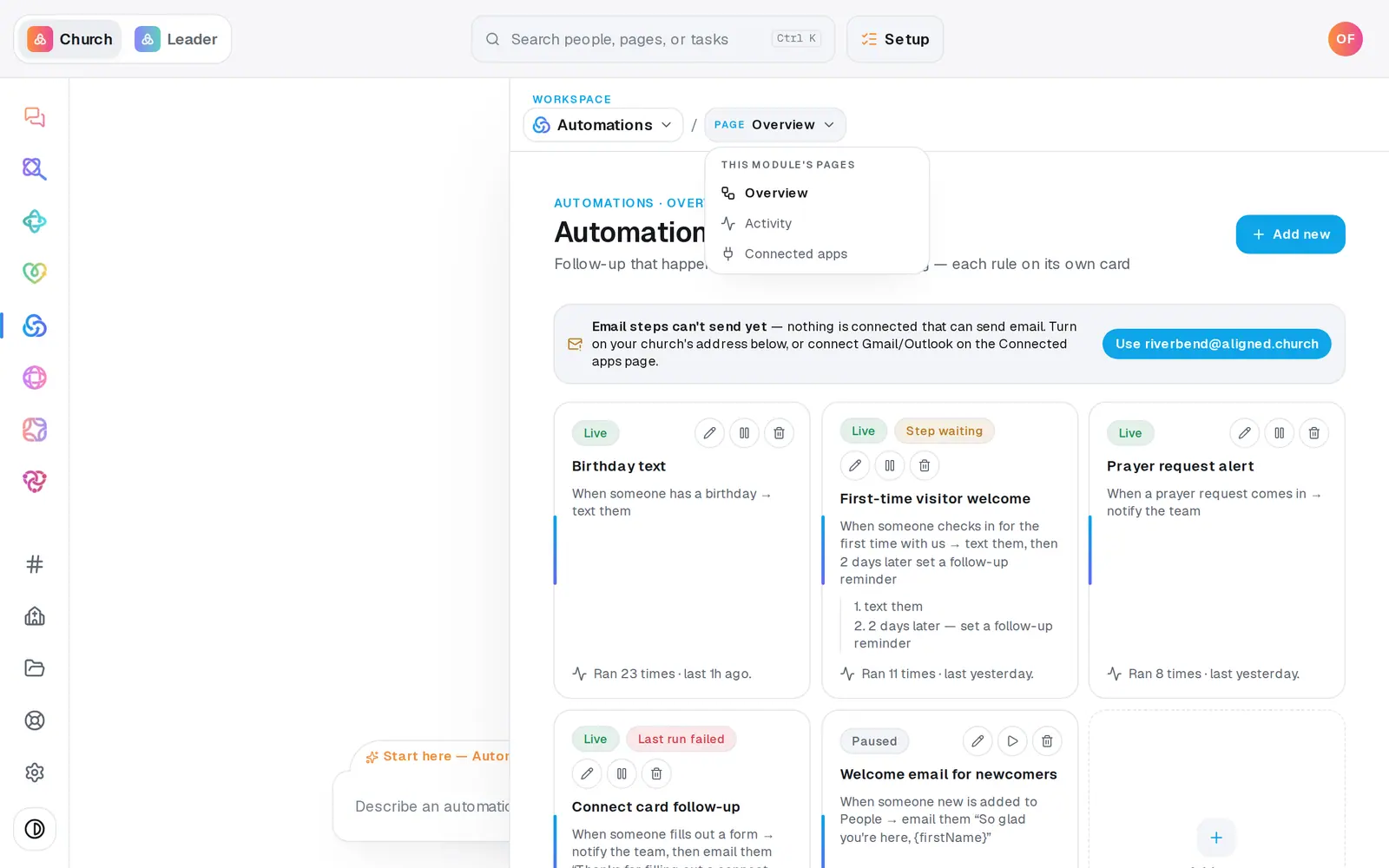
1/6 · In Automations, choose Connected apps from the page menu
Good to know
- Rather send from your church's Gmail or Outlook? Press Gmail (Google) or Outlook (Microsoft), sign in with the account the church sends from, and allow Aligned to send email. From then on it sends instead of Aligned Email, so your people see your church's real address.
- Set Public email on the Your church page (at the bottom of the left rail) so replies reach your church office rather than whoever turned Aligned Email on.
- Already built an automation with an email step? The Automations page shows “Email steps can't send yet” with a Use button for your church's address, which turns Aligned Email on in one tap.
- Changing your church's web address later changes the Aligned Email address with it.
If it’s not working
It says “Pick your church's web address first”
Your Aligned Email address is made from your church's web address. Set it under Your web address on the Your church page, then press Aligned Email again.
It says the web address can't be used as an email address
A few words can't be mailbox names. Change your web address on the Your church page, or connect your church's Gmail or Outlook instead.
It says turning this on needs an owner or admin
Only the church's owner or an admin can choose the sender. Ask one of them to do it. It's shared church-wide, so it works for everyone once it's on.
Our emails still come from aligned.church after connecting Gmail
Gmail or Outlook is only used when it's allowed to send. If you only allowed reading or the calendar when you signed in, Aligned can't send from it. Disconnect it on this page and connect again, allowing Aligned to send email.
It says “Ready to make this live?”
Turning on a sender waits until your church has finished setup. Press Setup at the top of the screen, finish it, then come back to Connected apps.
Next, you might want to
- Email the whole church or one listWrite an email, see exactly who will get it and who's left out, then send it.
- Check your email went out and read repliesSee how many people each email reached and how many were skipped, and read email that arrives at your church's Aligned address.
- Connect Planning Center, Breeze or your giving platformConnect the apps your church already uses, disconnect one, or ask about an app that isn't in the list.
- Update your church's name, address and contact infoChange your church's name, tradition, lead pastor, campuses, service times, phone, email and links in one place.