Find your way around your church workspace
Every new system has that first hour of wondering where they put things. Aligned Church is built around one chat, with each part of your church office a click away on the left. Learn these few landmarks and you won't have to hunt for a screen again.
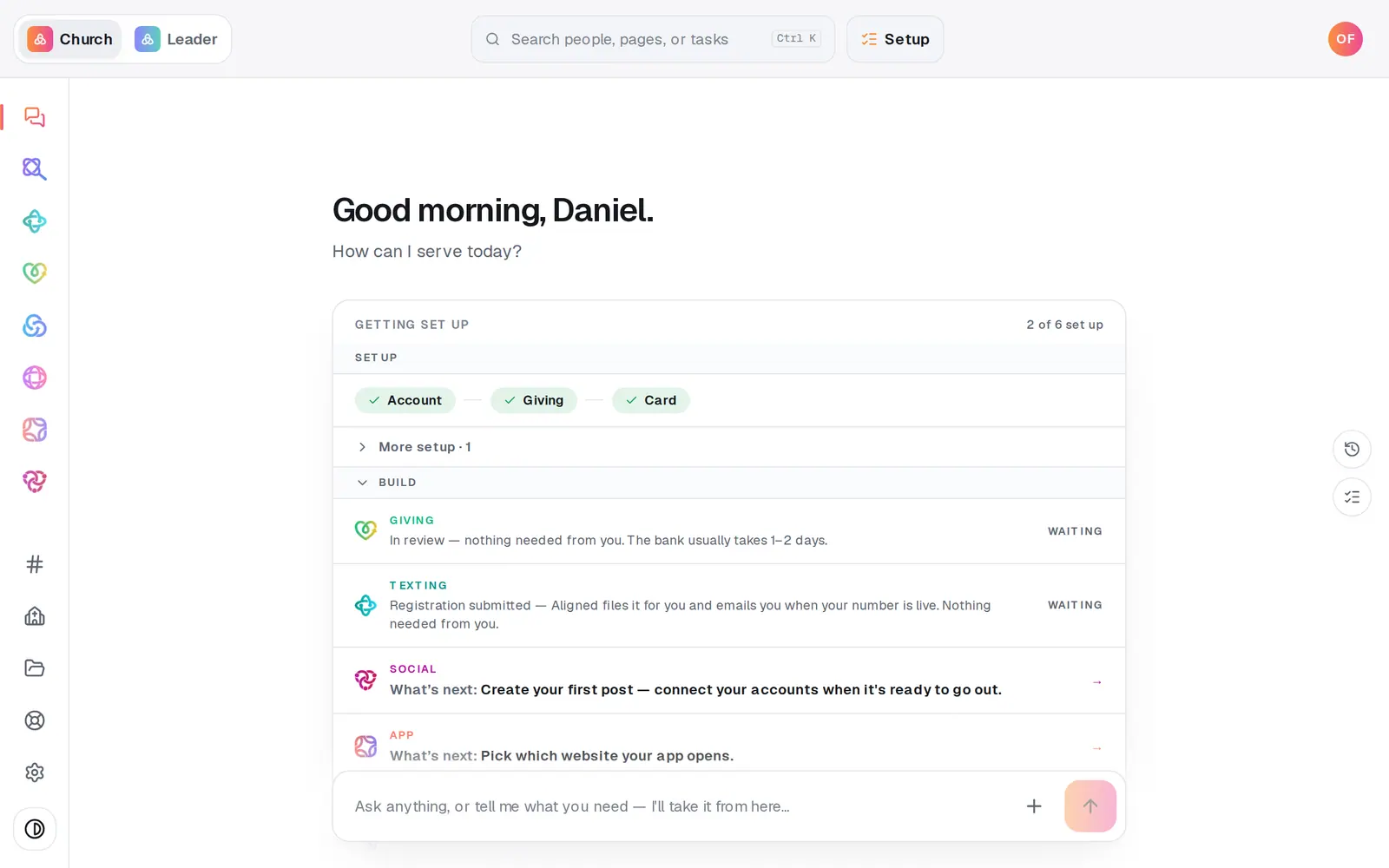
1/7 · Click a module on the left rail, like Manage
Good to know
- Setup, beside the search bar, opens your Getting set up checklist any time.
- The two round buttons at the right edge of the chat are Chat history (every conversation you've had here, all modules together; press it again to go Back to today) and Setup checklist.
- A bell appears at the top right only when something needs you. Click a row to open the page it's about. The mute icon on a row silences that kind of notice for you alone.
- Each person has their own chat. Your colleagues never see your questions, and you never see theirs.
If it’s not working
I can't find SEO or Import on the rail
Neither has its own icon. SEO lives inside Website, and Import opens from the Bring your church's data in row on your Home checklist. Typing either word into the search takes you straight there.
A panel is covering my chat and there's no ×
Module panels close when you click the conversation to their left or press Home on the rail. Your church, Files, Team, Settings and Setup do have an ×; it takes you back to wherever you opened them from.
My rail only shows Manage (or a few modules)
You're on a staff seat, and your role decides which modules you can open. Your church's owner sets roles in Settings → Staff.
Clicking a module shows “Add … to my plan” instead of the module
That module isn't on your church's plan yet. The page shows what it adds and what your monthly total would become, and your church's owner can add it right there.
Next, you might want to
- Get your church set up, step by stepUse the Getting set up checklist and “What's next?” to finish setup in the order that gets you running fastest.
- Ask Aligned questions and have it do the workAsk how something works, have Aligned add people and events for you, open any page by asking, and attach files to the chat.
- Use your church workspace on your phoneThe tabs along the bottom, the More sheet, and where Social, Research and Settings live on a phone.
- Get help from a real personMessage the Aligned team from inside your workspace, and what happens after you press send.