Bring in a Meet call Google already transcribed
Google Meet already wrote down every word of the call, so there's nothing left to record. Aligned can bring that transcript in and write it up like any meeting it recorded itself.
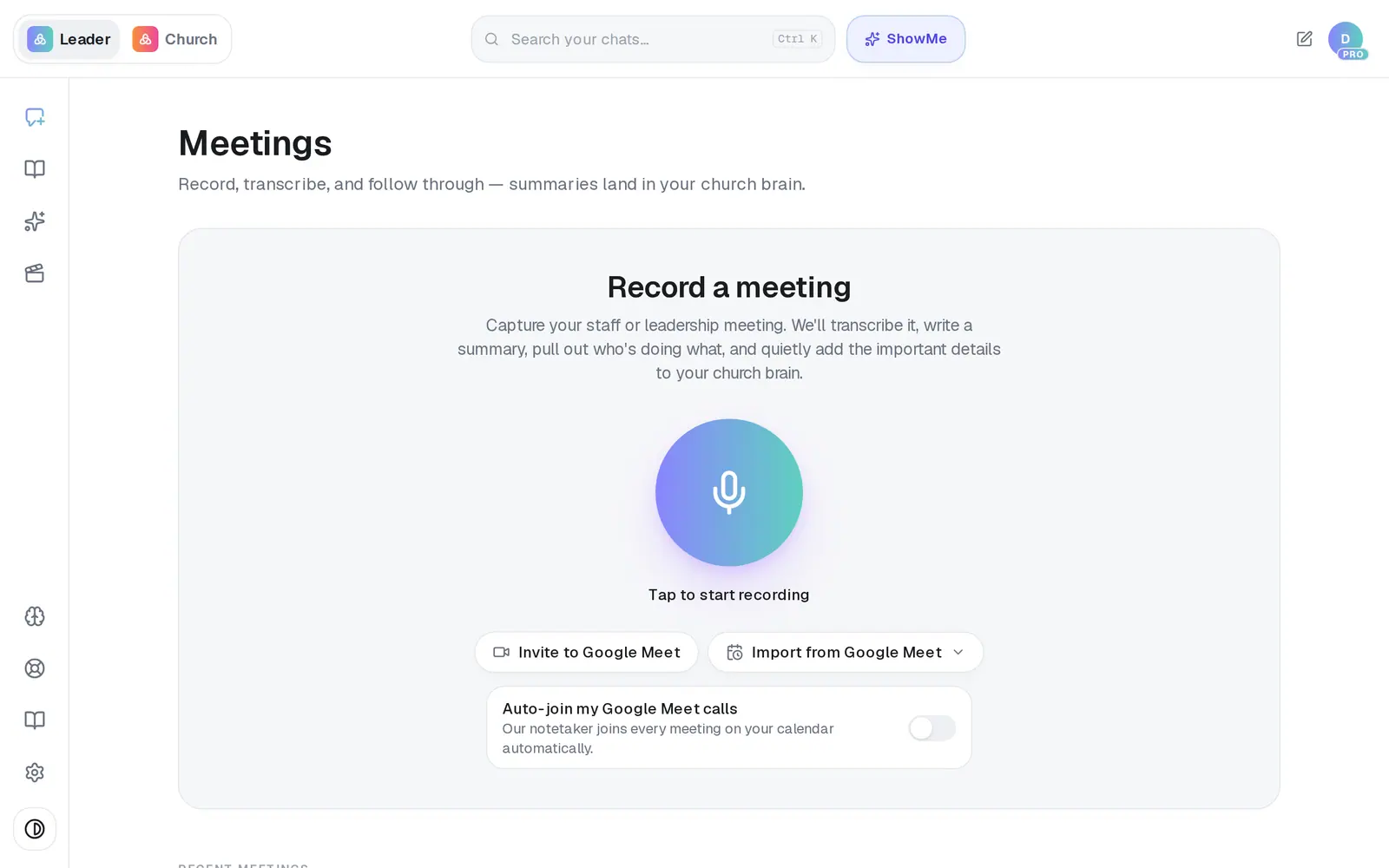
1/5 · On Meetings, press Import from Google Meet
Good to know
- If your calls aren't being transcribed by Google, send Aligned's notetaker into them instead — it doesn't need Google's transcription turned on.
- Want the action items as a checklist? Press Save as plan under them once the meeting is Ready.
If it’s not working
It says “Connect Google to import the meetings it already transcribed.”
Either Google isn't connected yet, or it was connected before Aligned could read Meet calls. Either way, press Connect Google, sign in with your church's Google account and allow access. Nothing you already connected stops working. You land on Automations afterwards, so open Meetings again and press Import from Google Meet.
Pressing Import shows a red message starting “Reconnect Google with Meet access…”
Google's permission to read Meet calls is missing. Press Reconnect Google under the message and allow access. You land on Automations afterwards, so open Meetings again and import the call.
It says “No transcribed Google Meet recordings were found on the connected account.”
Google hasn't transcribed any recent calls on that account. The call's host has to have transcription turned on in Google Workspace — or send Aligned's notetaker into your next call instead.
It says “That meeting has no transcript.”
That call was recorded but never transcribed, so there's nothing to bring in. Pick another call from the list.
Google says “This app hasn't been verified by Google”
Everyone who connects Google sees this page, and nothing is wrong on your side — the developer address it names is ours. Choose Advanced at the bottom-left, then the Go to … (unsafe) link under it, then allow the permissions.
Next, you might want to
- Send a notetaker into your Google Meet callsInvite Aligned's notetaker to one Google Meet call, have it join every call on your calendar, or stop it joining.
- Read your meeting notesOpen a finished meeting's summary, action items and transcript — then turn it into something new, or delete it.
- Connect your email and calendarLink Gmail or Outlook so your assistant can read your calendar, draft email from your own mailbox and find your files — or share only your calendar.
- Fix a meeting that failed or is stuckWhat to do when a meeting sits on Summarizing… or says Failed — and how to make sure the next one comes through.