Send a notetaker into your Google Meet calls
Typing notes on a video call means half-listening to the people on it. Send Aligned's notetaker into your Google Meet call instead: it listens, shows the notes as you talk, and turns the call into a summary and action items when it ends.
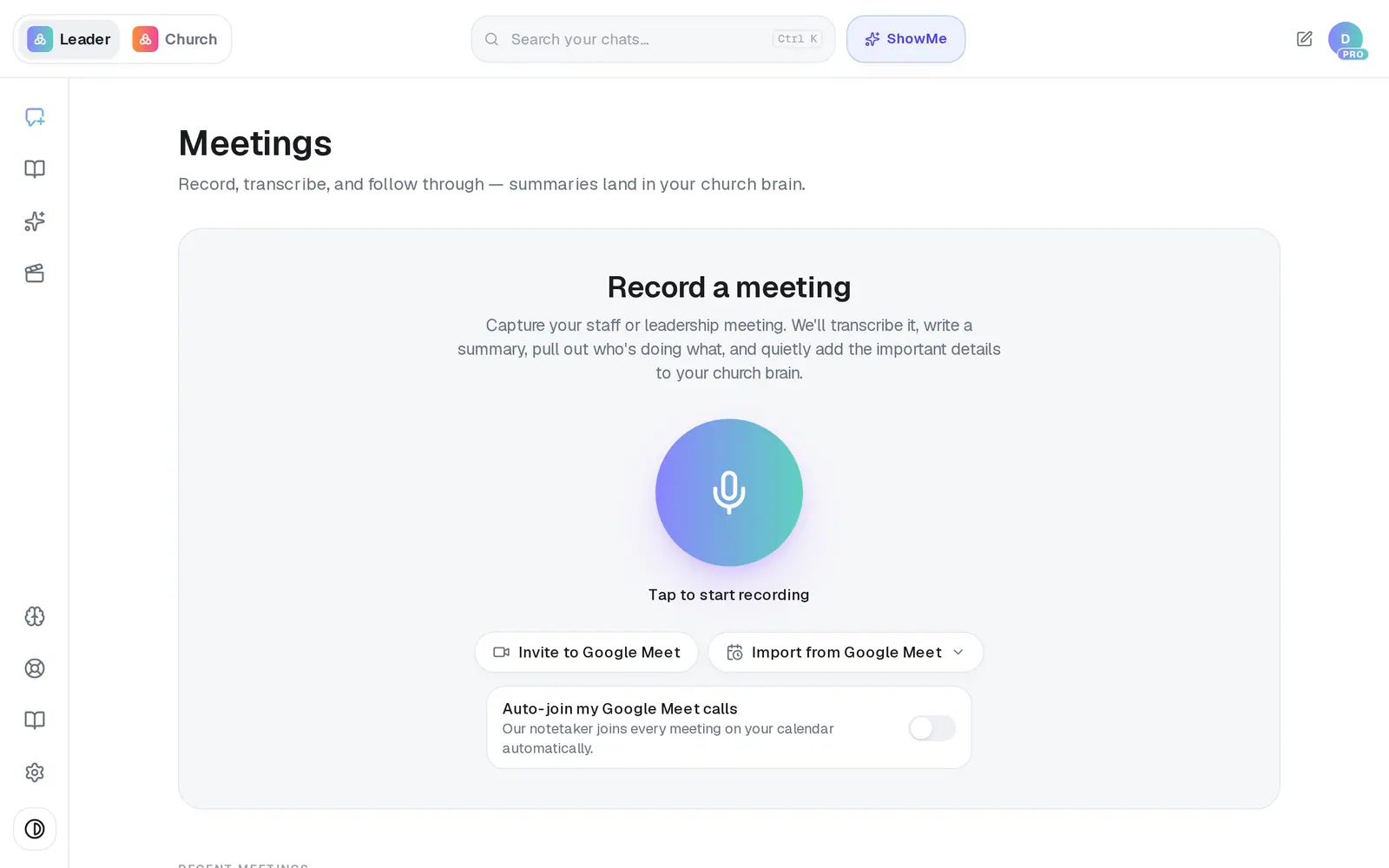
1/7 · On Meetings, press Invite to Google Meet
Good to know
- Send it once the call has started, or a minute before, so someone is there to let it in.
- Inviting it to one call doesn't need your Google account connected — the link is all it takes. Only auto-join reads your calendar.
- With auto-join on, calls it's lined up for show under Recent meetings marked Recording before they start. They fill in once the call begins.
- If the live notes never fill in, the meeting isn't lost. The full transcript is made after the call ends, and the summary comes out the same.
If it’s not working
The meeting says Failed: “The notetaker never produced a recording.”
Nobody let the notetaker into the call. Next time, watch for AlignedAI Notetaker in Google Meet's waiting room and admit it.
It says “Enter a valid meeting link (e.g. meet.google.com/abc-defg-hij).”
The link wasn't recognized. Copy the join link straight from the calendar invite or from Google Meet rather than typing it.
Google says “This app hasn't been verified by Google”
Everyone who connects Google sees this page, and nothing is wrong on your side — the developer address it names is ours. Choose Advanced at the bottom-left, then the Go to … (unsafe) link under it, then allow the permissions.
The switch says Reconnect Google with calendar access so we can see your meetings.
Google is connected, but without permission to read your calendar. Press Reconnect and allow calendar access when Google asks. You'll land on Automations afterwards — open Meetings again to turn the switch on.
Auto-join is on, but the notetaker never shows up
Check that Google is still connected, that the events have a Google Meet link (not a phone number or another app's link), and that they're on the calendar of the Google account you connected. If all of that looks right, message us from Support.
Next, you might want to
- Let Aligned take notes in your next meetingRecord a staff or elder meeting on your phone or computer and get a summary, action items and decisions back.
- Bring in a Meet call Google already transcribedImport a Google Meet call's transcript and get the same summary, action items and notes as a recorded meeting.
- Read your meeting notesOpen a finished meeting's summary, action items and transcript — then turn it into something new, or delete it.
- Fix a meeting that failed or is stuckWhat to do when a meeting sits on Summarizing… or says Failed — and how to make sure the next one comes through.