Let Aligned take notes in your next meeting
It's hard to lead a meeting and take good notes at the same time. Set your phone on the table, tap one button, and Aligned writes up what was said — who's doing what, what you decided, and the ideas worth keeping.
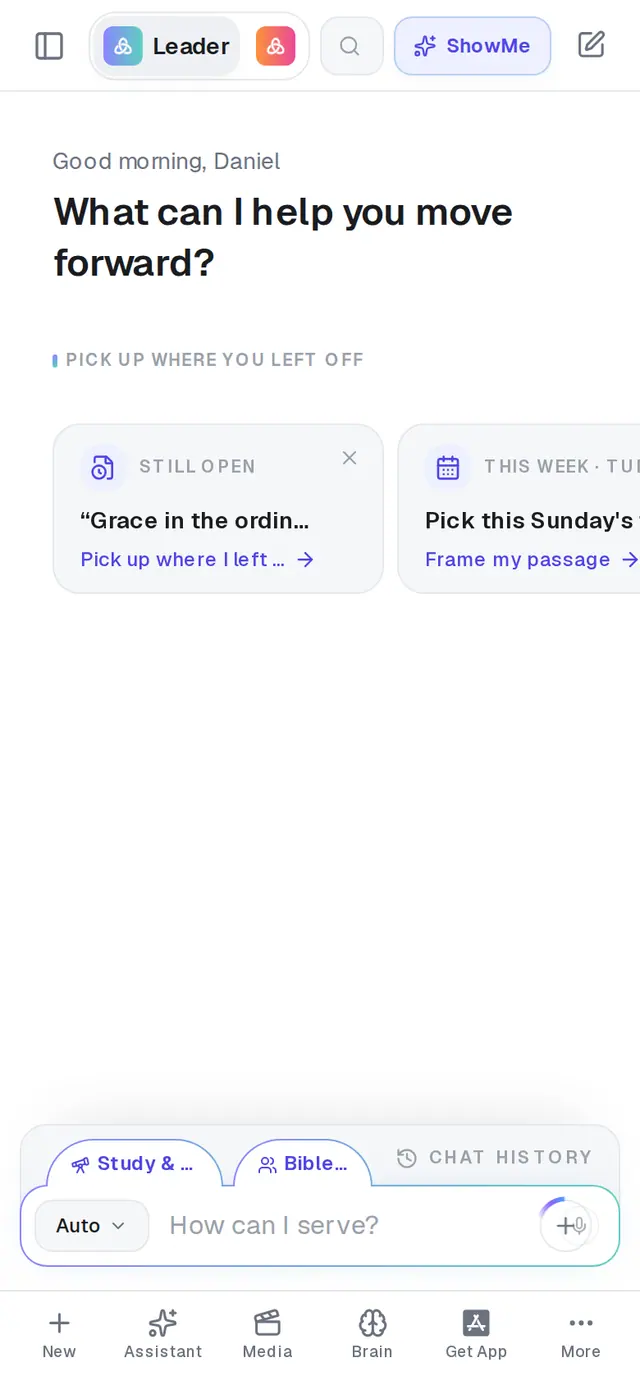
1/6 · Tap the format chip beside the message box
Good to know
- Recording a video call on a computer? Open Meetings in the same browser as the call, tap the microphone and choose OK, then pick the call's tab and switch on Share tab audio — that captures everyone on the call, not just you.
- In the Aligned phone app, look for Keeps recording if your screen locks or you switch apps. under the button. If you don't see it, update the app before a long meeting — an older version pauses when the screen locks.
- Each meeting you record counts as one request. A quick mic test doesn't, and neither does a recording that fails.
- On Google Meet? Send the notetaker instead — it joins the call and takes the notes for you.
If it’s not working
I can't find Record meeting
Meetings isn't in the left rail or the bottom bar — it's the last row of the format menu beside the message box. The row hides while a document is open beside the chat, so close the document first, then open the menu again.
The meter turned red
It says We can't hear anything… when no sound is reaching Aligned. Check that the right microphone is selected and unmuted. Fix it and keep going, or stop and start again — otherwise the recording will come back empty.
It says “Microphone access was blocked.”
Allow the microphone for aligned.church in your browser's site settings — or, in the phone app, turn it on in your phone's Settings under AlignedAI — then tap the microphone again.
It says “Your session expired — sign in again and re-record.”
Your sign-in ran out while you were recording, so that recording can't be uploaded. Sign in again before the next meeting and record it fresh — nothing was charged for the one that didn't go through.