Change the card you pay with
A new card came in the mail, or the old one is about to expire. You can swap the card Pro bills to in about a minute, and nothing is charged when you do — your Pro and your billing day stay exactly as they are.
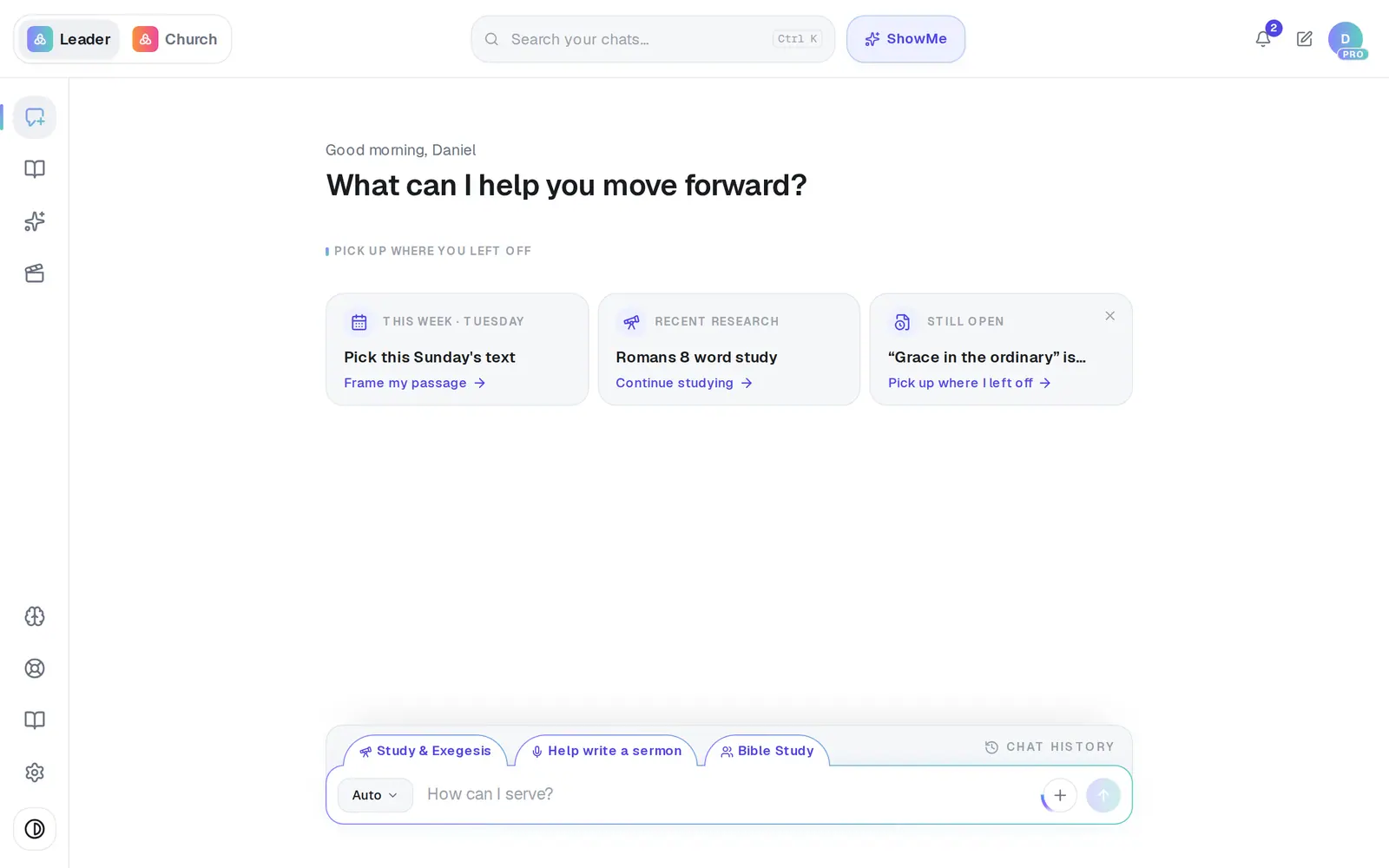
1/5 · Open Settings from the gear at the bottom of the left rail
Good to know
- Don't cancel Pro to swap cards. Cancelling ends Pro right away and refunds nothing, and subscribing again charges you on the spot — two payments for one month.
- Pick light or dark mode before you start typing. Switching the look while the form is open reloads the card fields, and you'd have to type the card again.
- If a payment didn't go through, the button reads Save card & retry payment instead, and the missed payment is tried on the new card straight away.
If it’s not working
It says “The card was not accepted, so nothing was charged.”
The form couldn't take that card, so nothing was saved or charged. Check the number, expiry and ZIP code, or try a different card.
I don't see a Payment method card
It only appears for the church's owner, and only once a card has been entered. If your church has never subscribed, press Unlock Pro instead, which asks for your card as part of upgrading. Staff don't get a Billing tab at all, so ask whoever set up your church's account, or message Support.
My old card was declined before I changed it
Changing the card here also retries the missed payment. Keep Pro when your card is declined walks through it.
Next, you might want to
- Keep Pro when your card is declinedFix a failed payment in a minute, before Pro pauses for you and your staff.
- Get a receipt or ask for a refundWhere Pro receipts go, when your next charge is, and how to ask a person about a charge.
- Switch Pro to yearly billingMove Pro from monthly to yearly and save 20% — without losing the month you've already paid for.
- Cancel Pro (and what happens to your work)Cancel your subscription, what you keep, and when it takes effect.