Import files from Drive, OneDrive or ChatGPT
Years of manuscripts and policies are already sitting in a Drive folder, and maybe a year of thinking is in ChatGPT. Bring them across in a few taps instead of downloading and re-uploading them one by one.
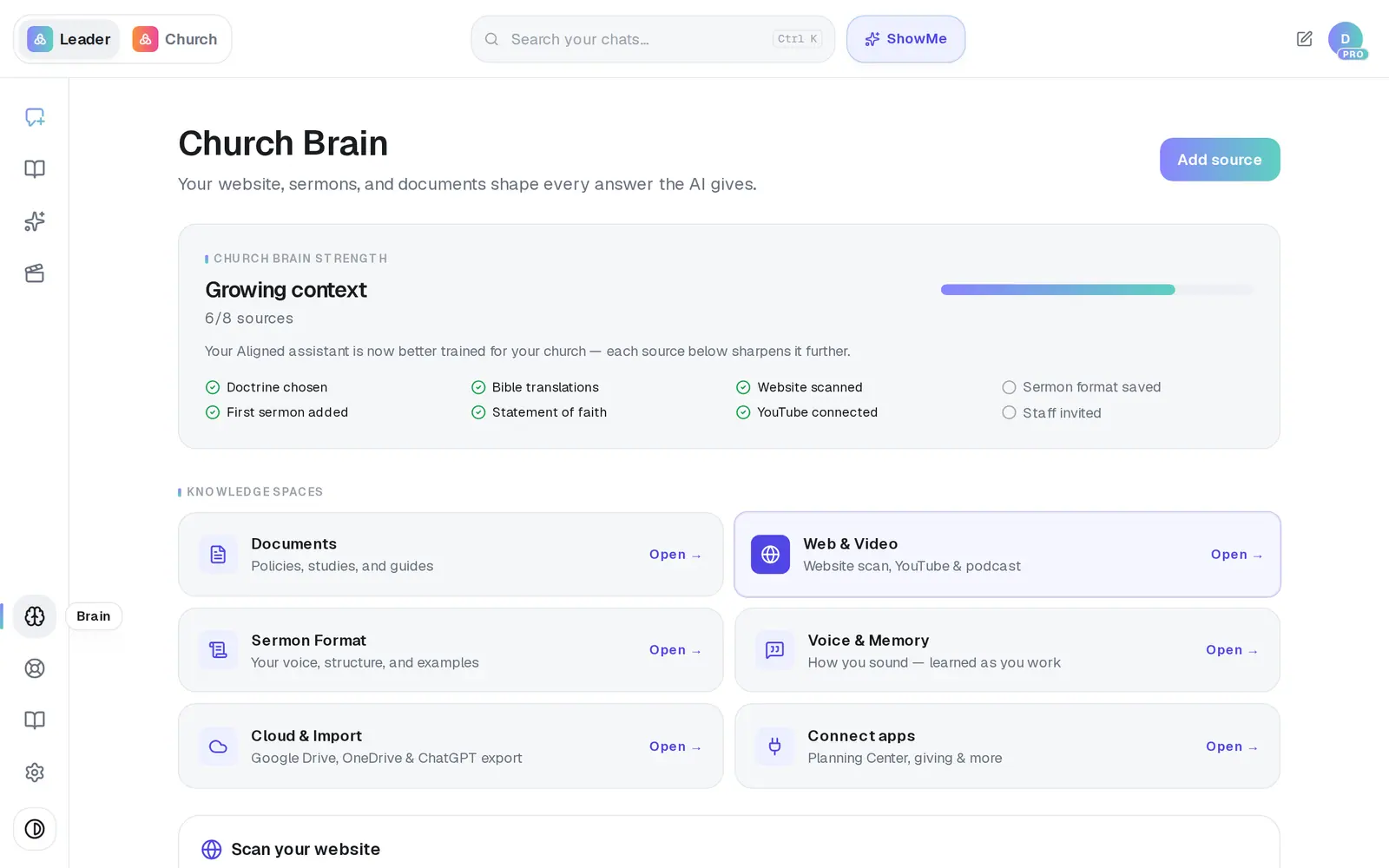
1/7 · In Brain, open Cloud & Import
Good to know
- Google asks for Gmail, Calendar and Drive together. One approval covers everything Aligned does with Google, so a long permission list is normal.
- Drive and OneDrive list the files Aligned can read: PDF, Word, Pages, RTF, text, Markdown and HTML, plus Google Docs, Sheets and Slides. An empty folder view means nothing importable is in it.
- Importing the same file again refreshes it — it doesn't make a second copy.
If it’s not working
Google says “This app hasn't been verified by Google”
Everyone sees this page. Choose Advanced at the bottom left, then the Go to … (unsafe) link, then Allow. The developer address it shows is ours. If you'd rather not continue, upload the same files under Documents instead.
It says “You selected more than 25 at once”
The first 25 went in. Tick the files that aren't in Documents yet and press Add to brain again.
It says “The connection dropped while importing”
Whatever finished is already in. Check Documents before adding those files again.
ChatGPT: “File too large (max 60MB)”
Unzip the export, then upload the conversations file from inside it instead of the whole .zip.
ChatGPT: “No conversations with content were found in that export.”
Very short conversations are skipped, so an export of only quick chats can come back empty. Make sure you chose the .zip from OpenAI's email, or the conversations file inside it.
Next, you might want to
- Upload your statement of faith and documentsAdd your beliefs, policies and manuscripts so Aligned draws on them, and choose which ones your website may quote.
- Make Aligned sound like youGive Aligned your website and your sermons so every draft sounds like you and believes what your church believes.
- Connect your email and calendarLink Gmail or Outlook so your assistant can read your calendar, draft email from your own mailbox and find your files — or share only your calendar.